
How to configure automatic email forwarding?
Hashtags: #Email #BusinessEmail #Forward #Copy #Forwarder #Forwarder
Automatic forwards or autoresponders are configured from the control panel.
- In the control panel cPanel, go to Autoresponders, in the Email box.
.png)
- On the configuration screen select the domain that will generate your forwarders.
Then, choose Add Forwarder to forward mail from a specific mailbox to another or Add Domain Forwarder, so that all mailboxes of your domain forward to the same mailboxes at another domain.
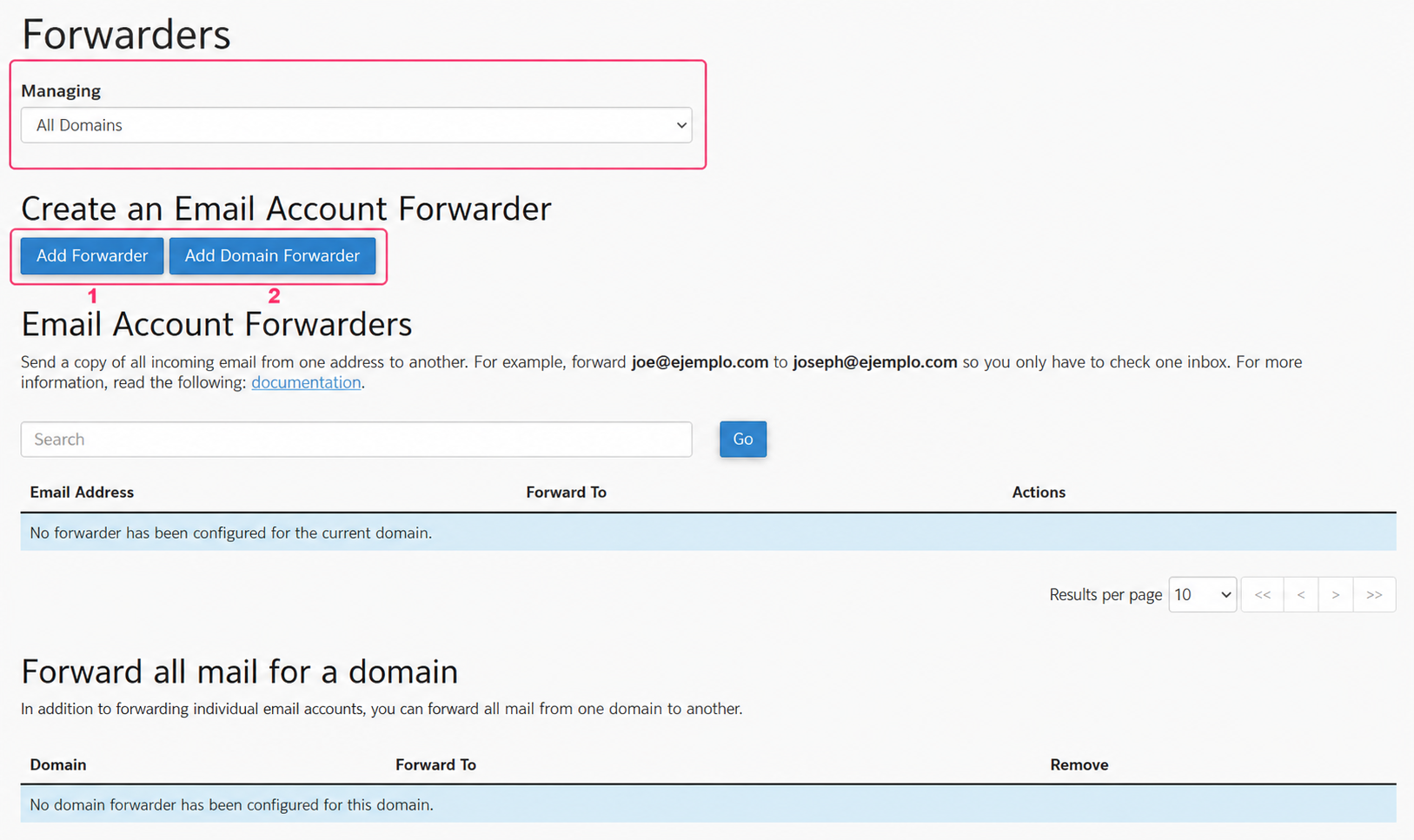
Let’s look at the two options in detail:
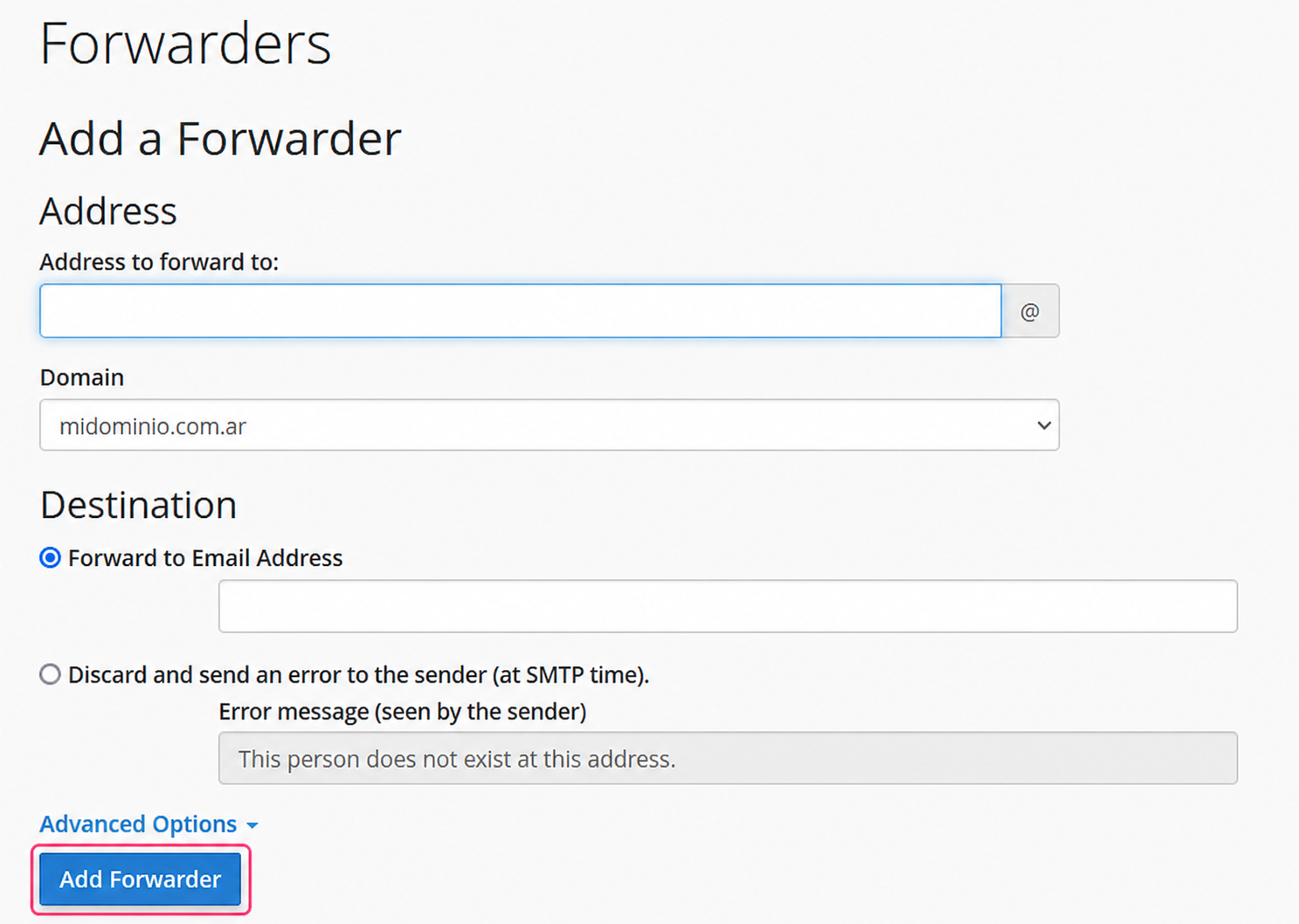
Add Forwarder:
The individual forwarder will ask you to configure the mailbox that will forward your emails and to which mailbox it should forward them.
Use the Add Forwarder button to save your forwarder.
Add Domain Forwarder:
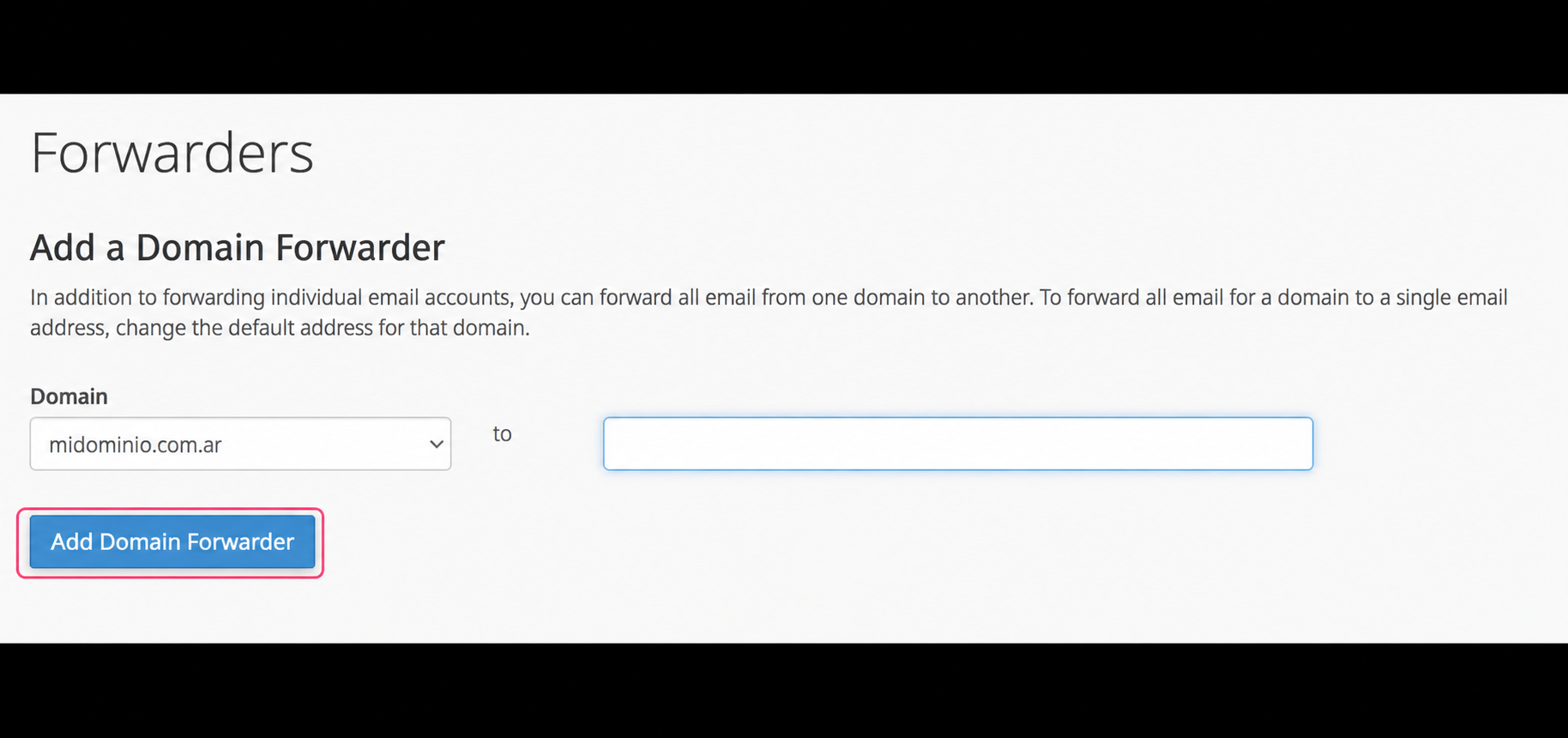
The domain forwarder will allow you to forward all emails sent to the mailboxes of your domain to the same mailboxes at another domain.
For example, if you have an address info@ all emails sent to it will be forwarded to info@anotherdomain. You will not have to configure this type of mapping; it will be done automatically. You only need to configure the domain to which you will forward your emails.
Use the Add Domain Forwarder button to save your forwarder.