
How to configure automatic email replies?
Below we'll show you how to configure an automatic email reply.
Follow these steps to create an automatic reply for your mailboxes:
Accessing Automatic Responses
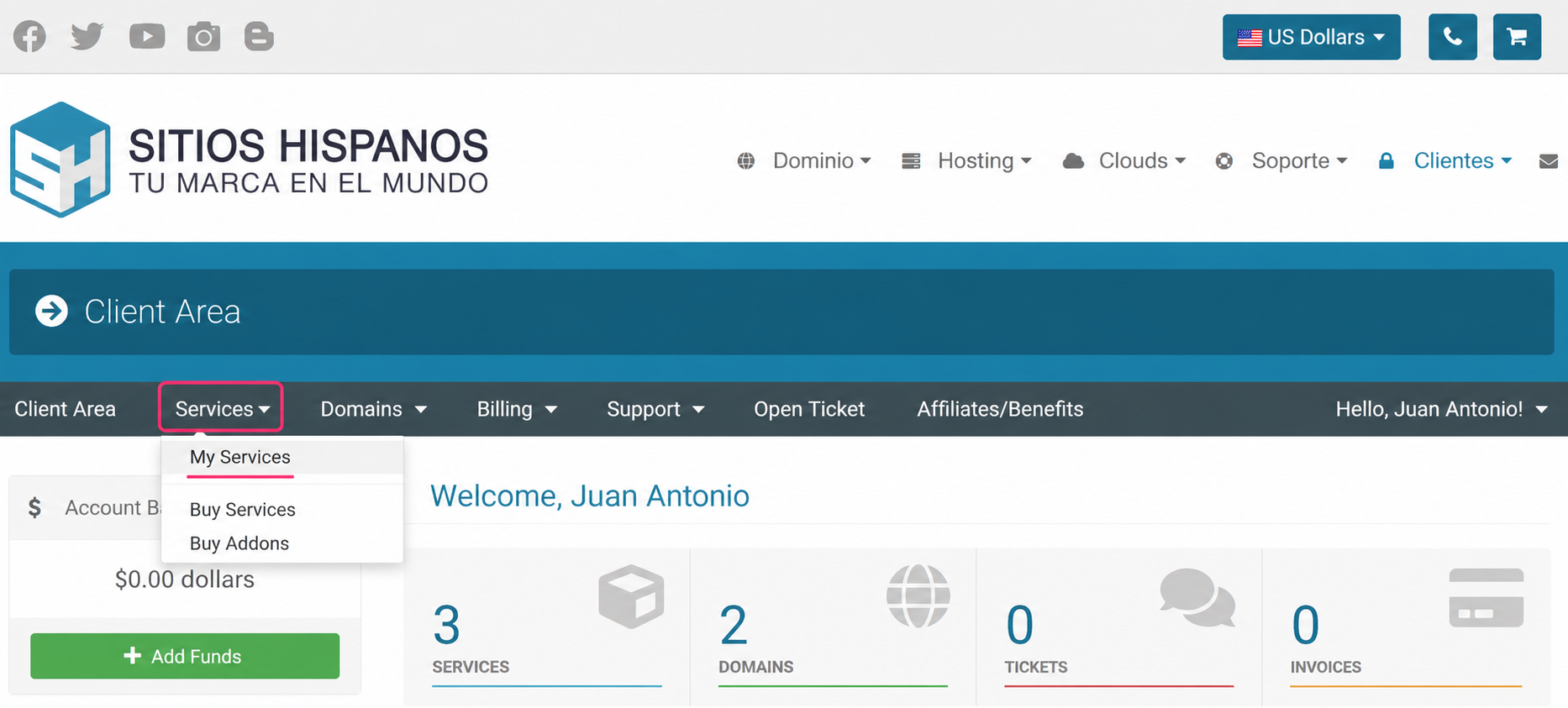
- Log in to your Client Area and click Services, then My Services.
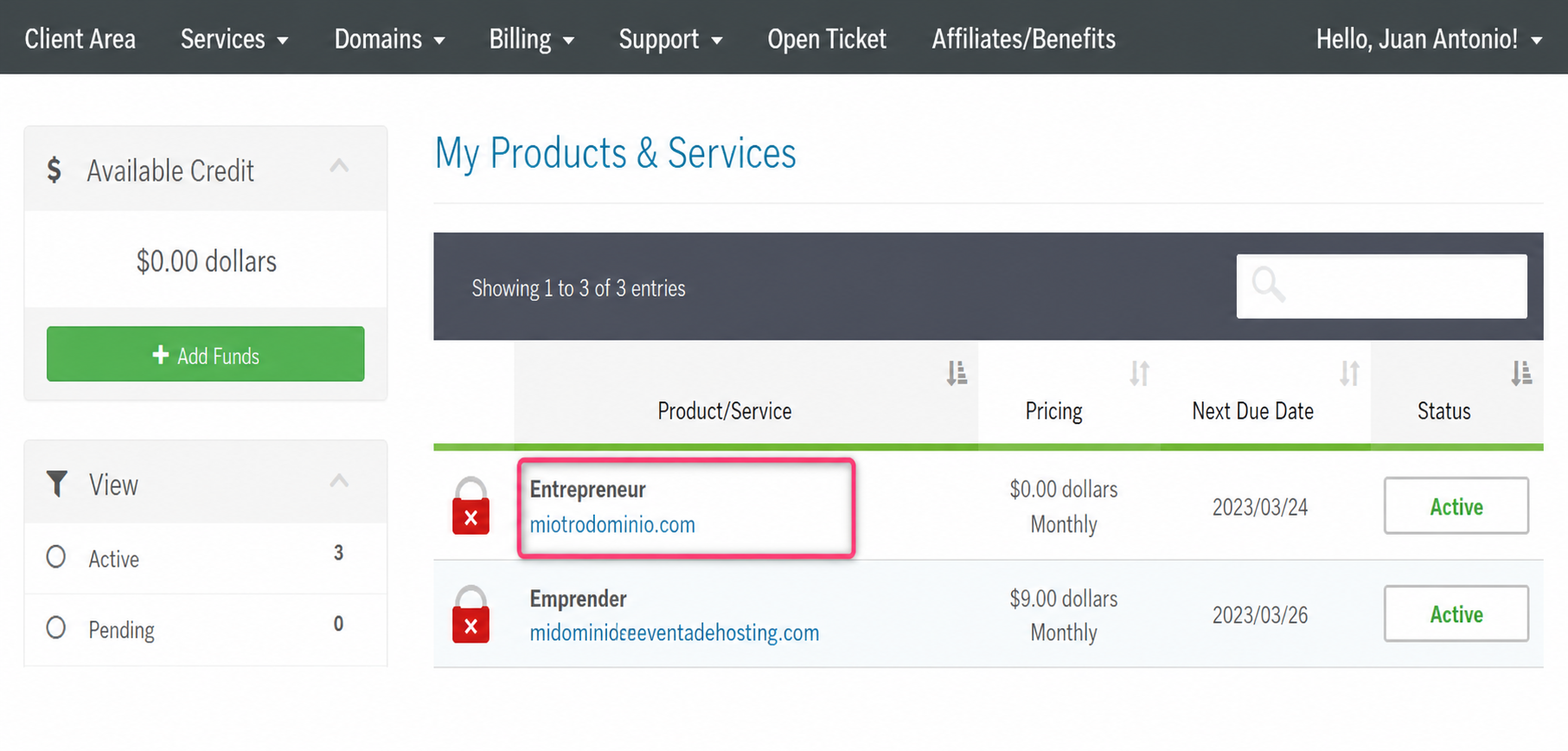
- From the list of hosting plans, enter the one for which you want to enable Automatic Responses.
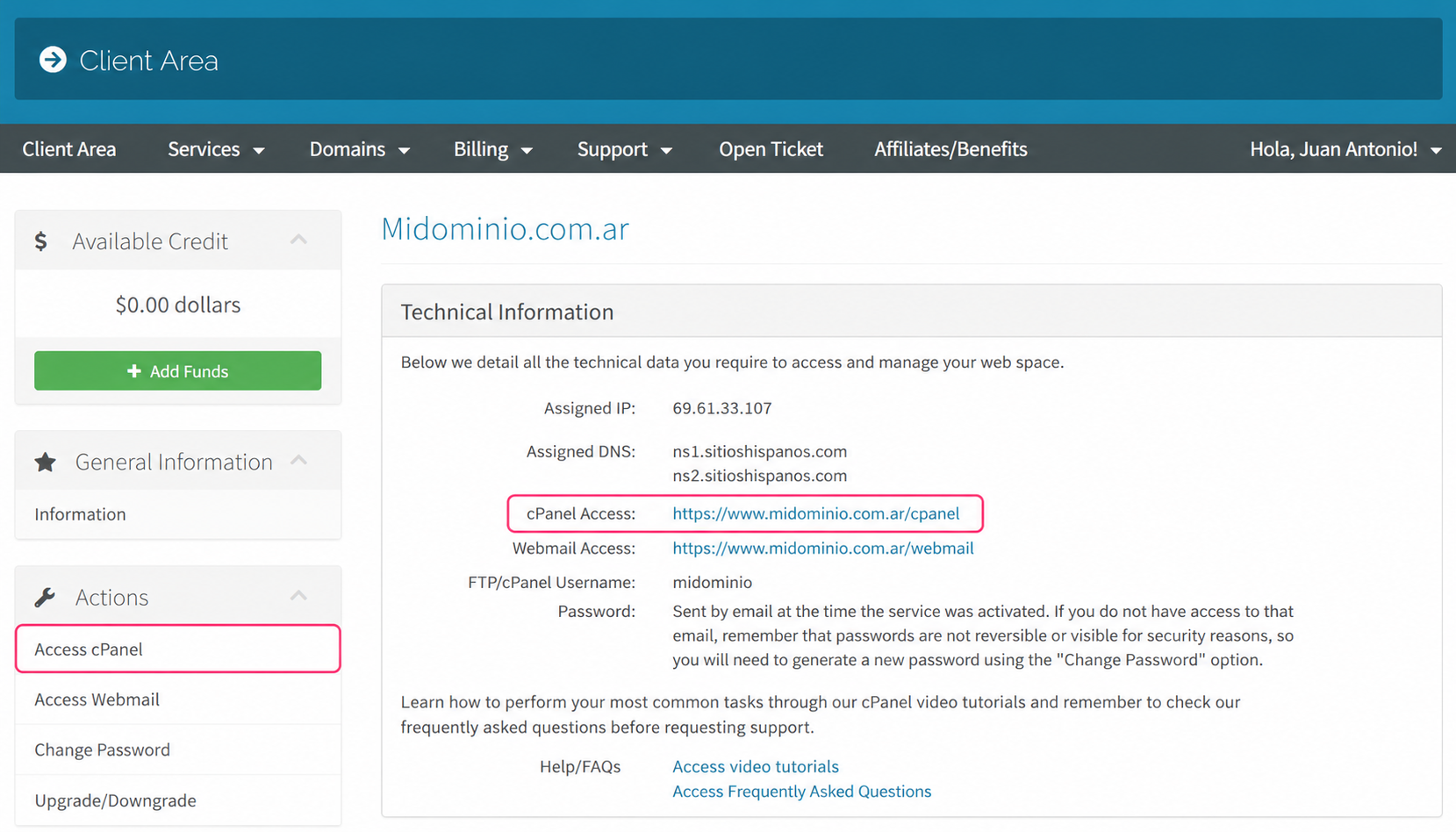
- On the new screen you will find, in the Actions box on the left, the option to access the cPanel control panel.
- You will also see, in the central Technical Information box, a direct link to the panel from your browser.
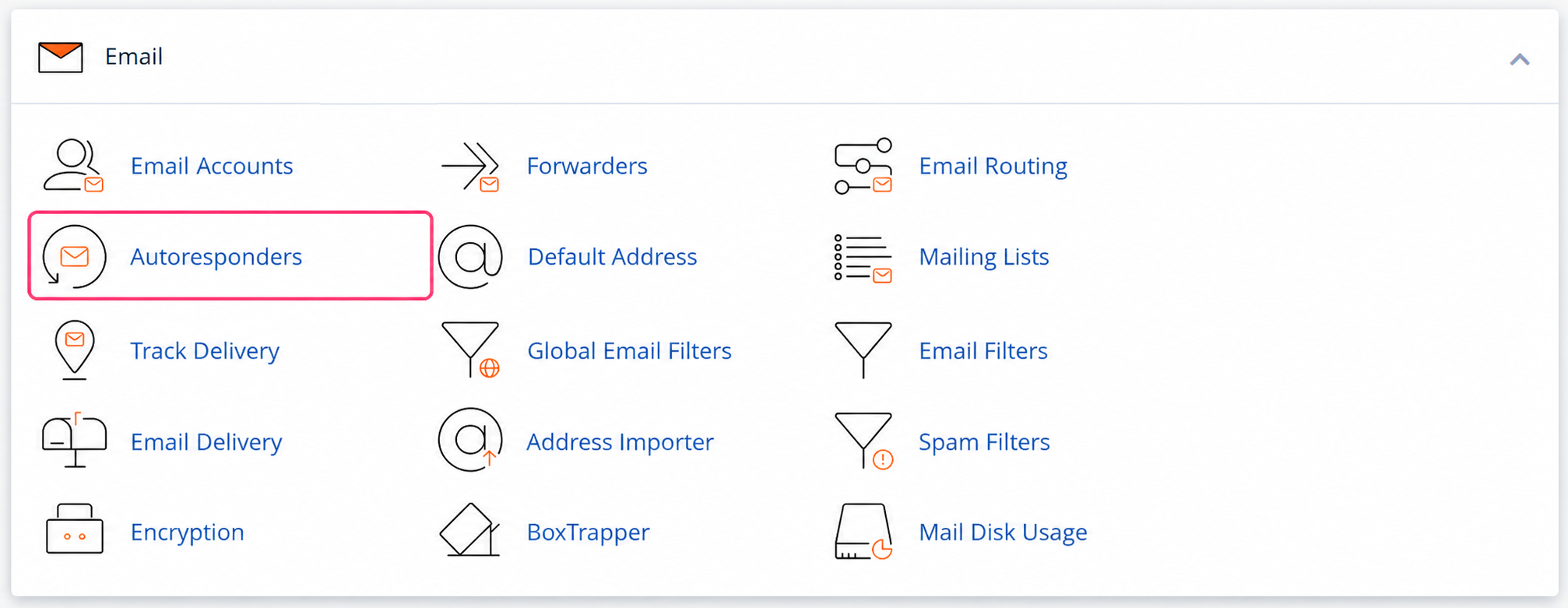
- Once in the cPanel control panel, go to Autoresponders, in the Email section.
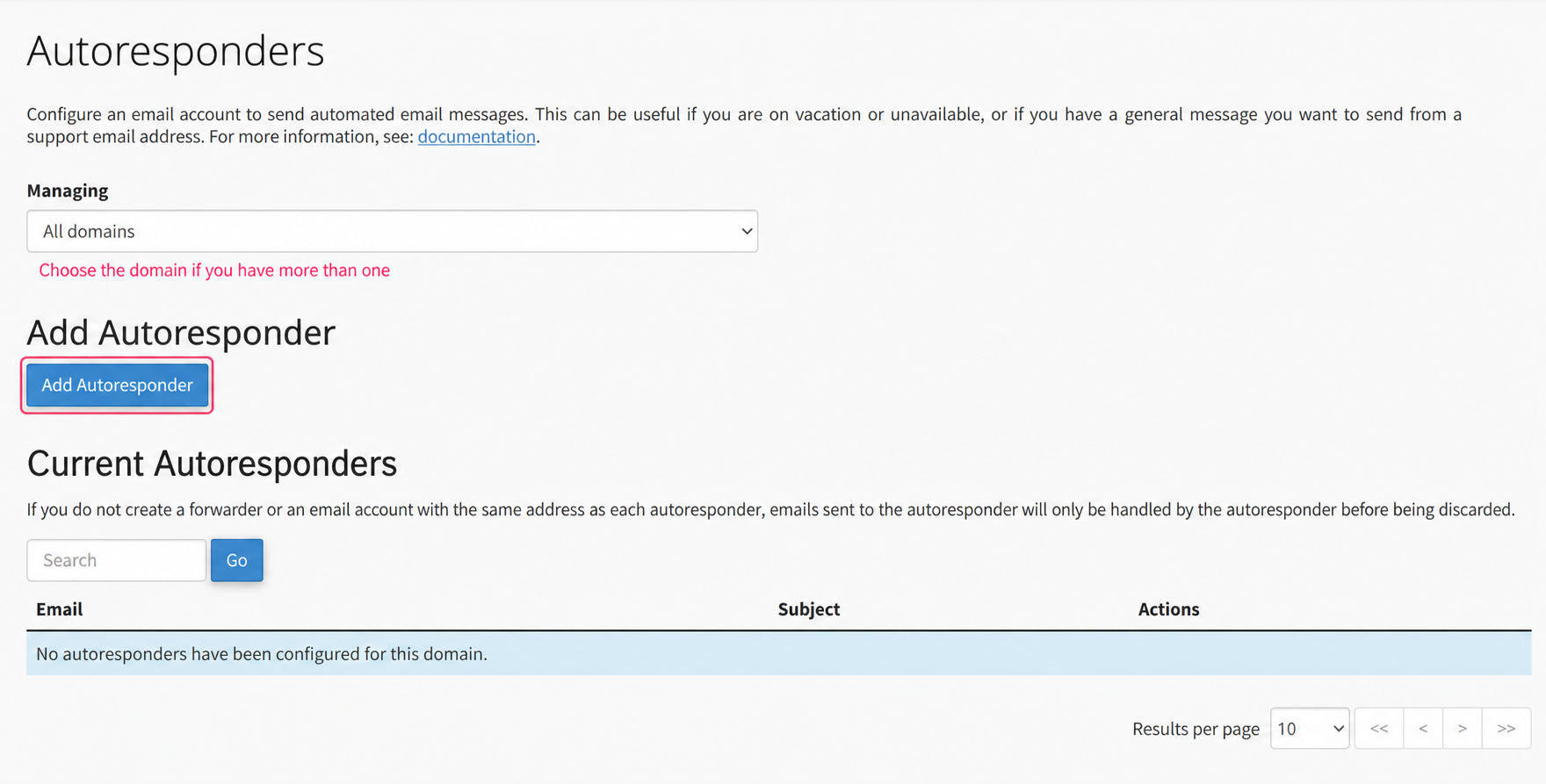
- First, choose the domain with which you will create the Automatic Responses, if you have more than one. Then click Add Autoresponder to create it.
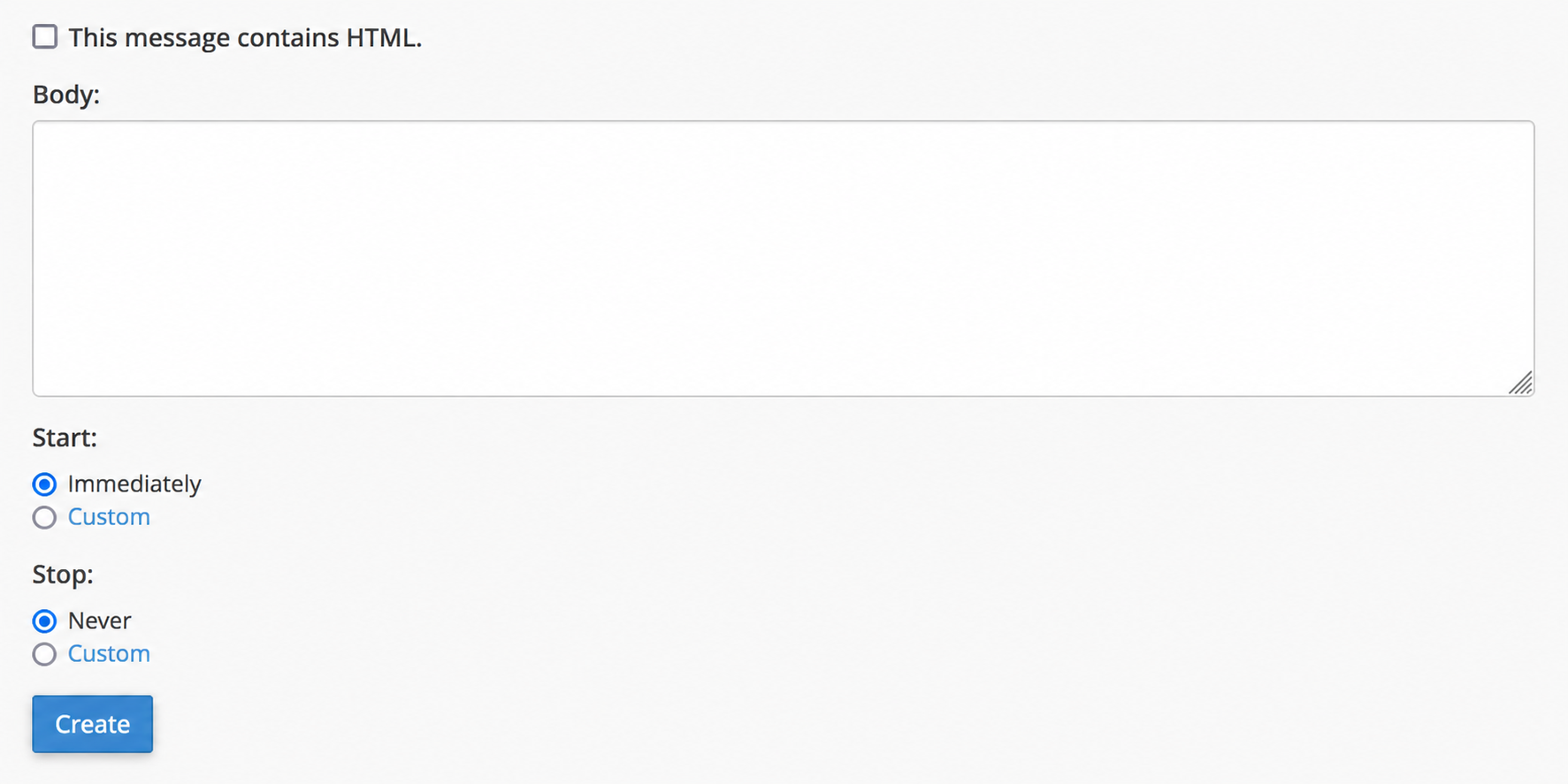
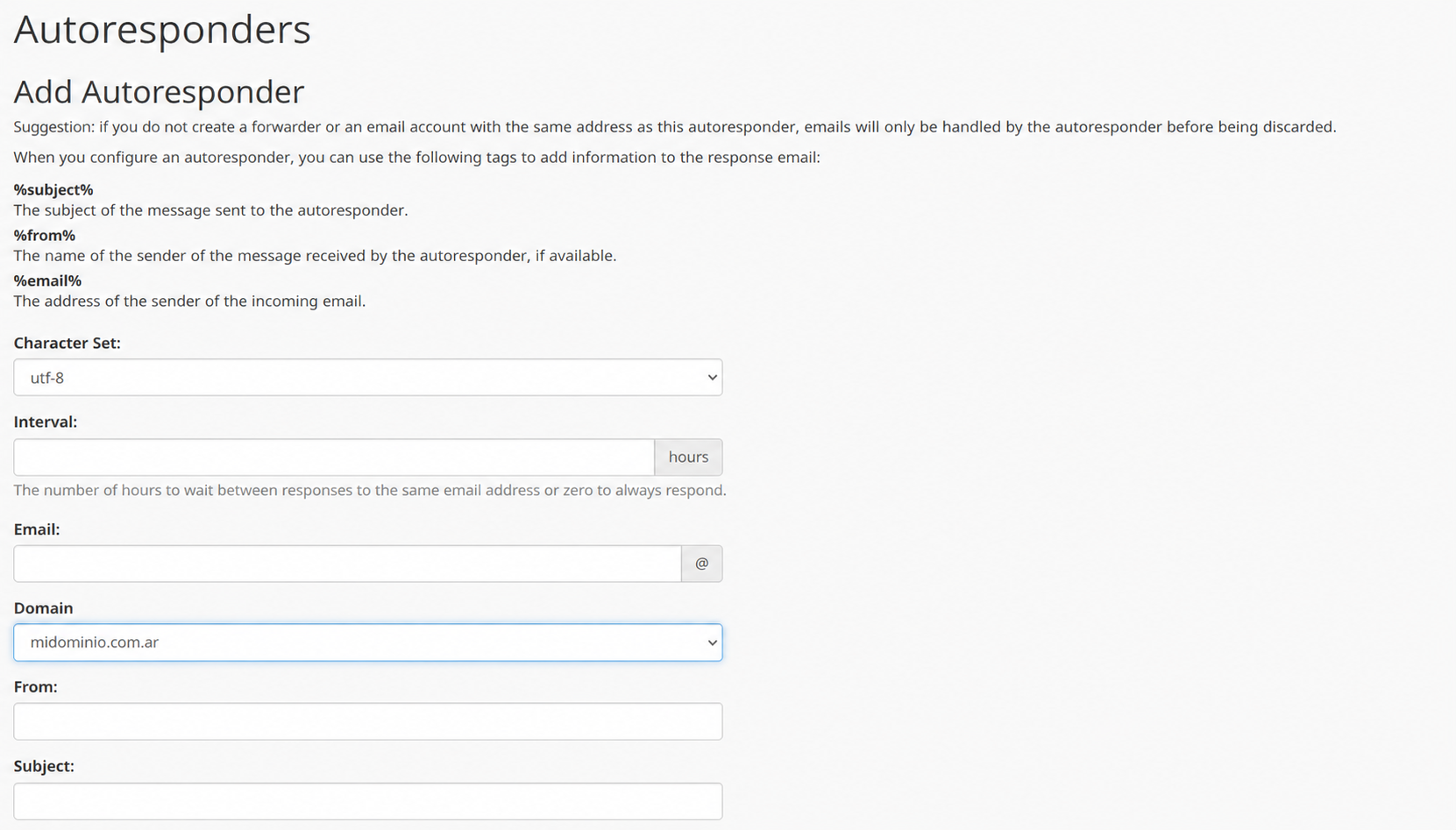
The configuration of the Automatic Response is quite simple. The form will ask for the email account that will generate the automatic replies, the sender’s name, the subject, and the body of the message to be sent.
You can configure when the Automatic Responses will start and when they will end. You can set this in the Start and Stop options.
- Finally, press the Create button and the automatic response will be created.