
How do I add an email address as a contact?
From your Client Area, you can add email addresses as contacts.
The contacts you add will receive notifications generated by the system and will be associated with the services you have contracted.
It is very important to add as contacts the email addresses you use to communicate with technical support or the billing department, which will speed up the identification of your plans and contracted services, facilitating the handling of your inquiries.
To add an email address as a contact, follow these steps:
- Log in to your Client Area.
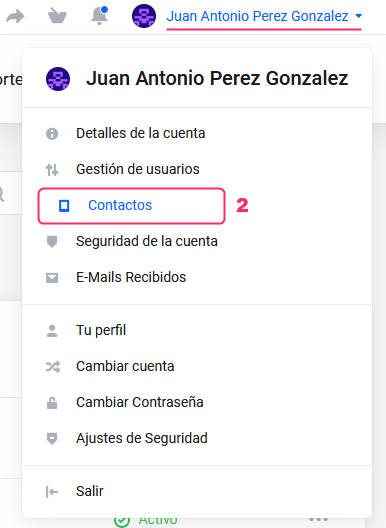
If you don’t remember how to log in follow this link: How to access the Client Area - In your Client Area click on the client name you will see at the top right.
A menu will open. Go to “Contacts”.
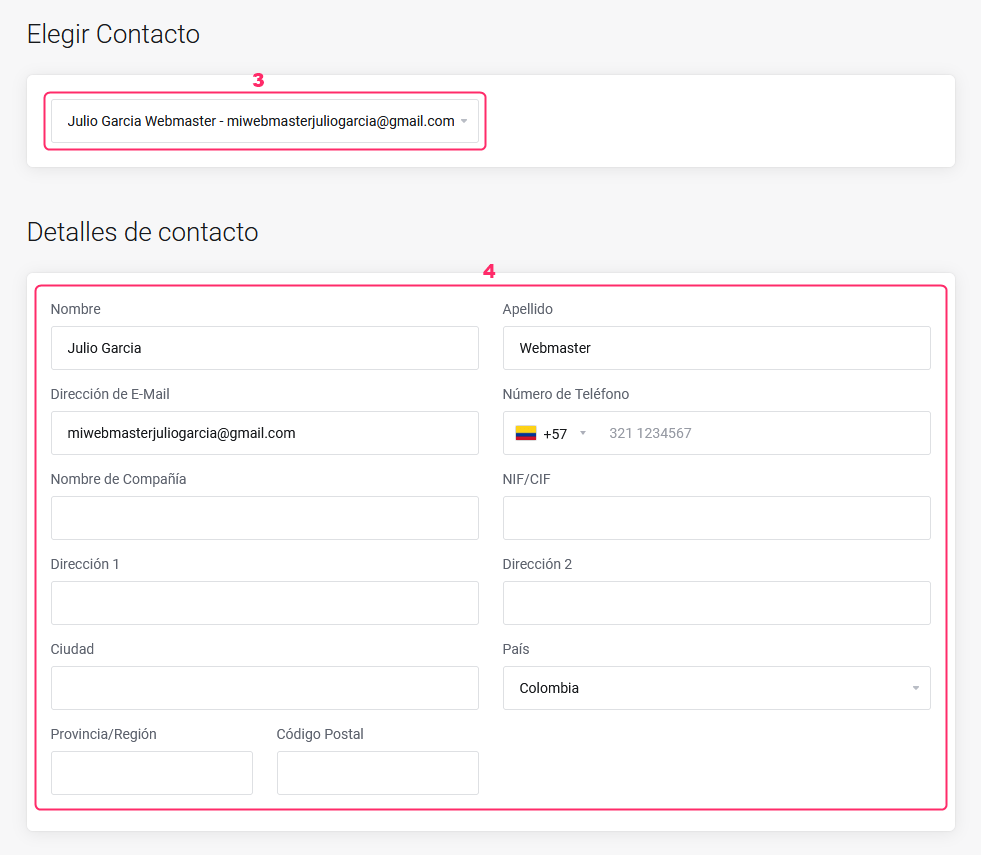
- On the Contacts screen, you will see a dropdown menu with your contacts already added and the option “Add New Contact”.
- When adding a new contact you will need to fill out the contact’s details in the form.
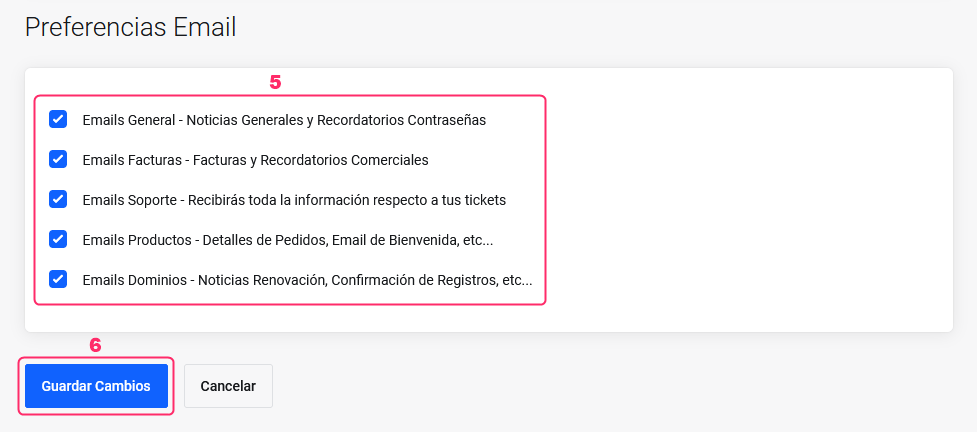
- Below the contact form you can configure which types of notifications the new contact will receive, such as billing notifications, domain renewals, hosting plan renewals, technical support responses, among others.
- Once everything is configured, press the “Save Changes” button to save the new contact.