

Creating a Subdomain
A Subdomain is a subdivision of a website under the same domain. Subdomains are often used to separate functions of a complex website.
For example, midominio.com could show a main site with product offers, while compras.midominio.com would show the shopping cart to process an order.
Follow these steps to create a Subdomain:
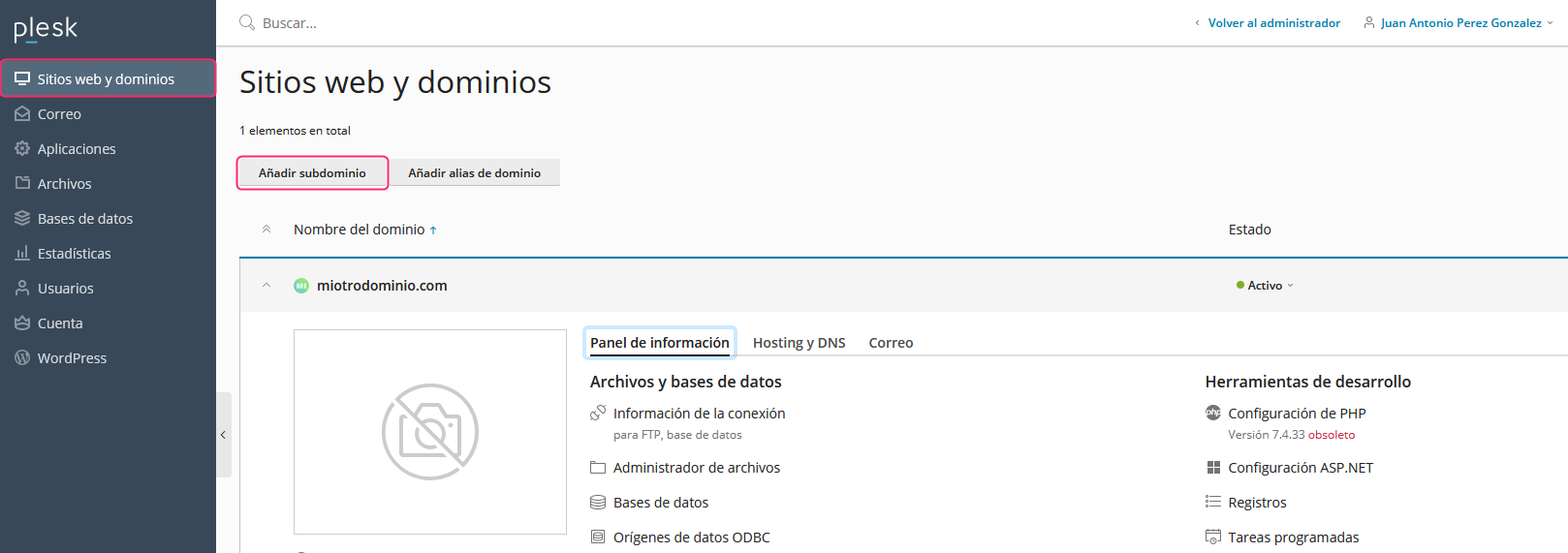
- To create a Subdomain go to Add Subdomain. This option is inside Websites & Domains, in the left menu.
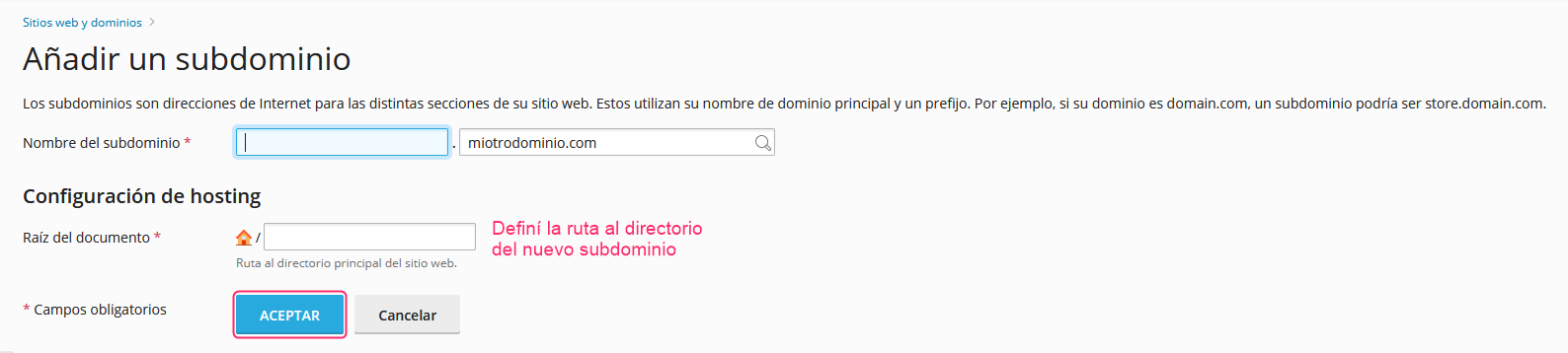
- You will need to enter the subdomain name and define the path where the directory will be created in which you will upload the files that the new subdomain will display.
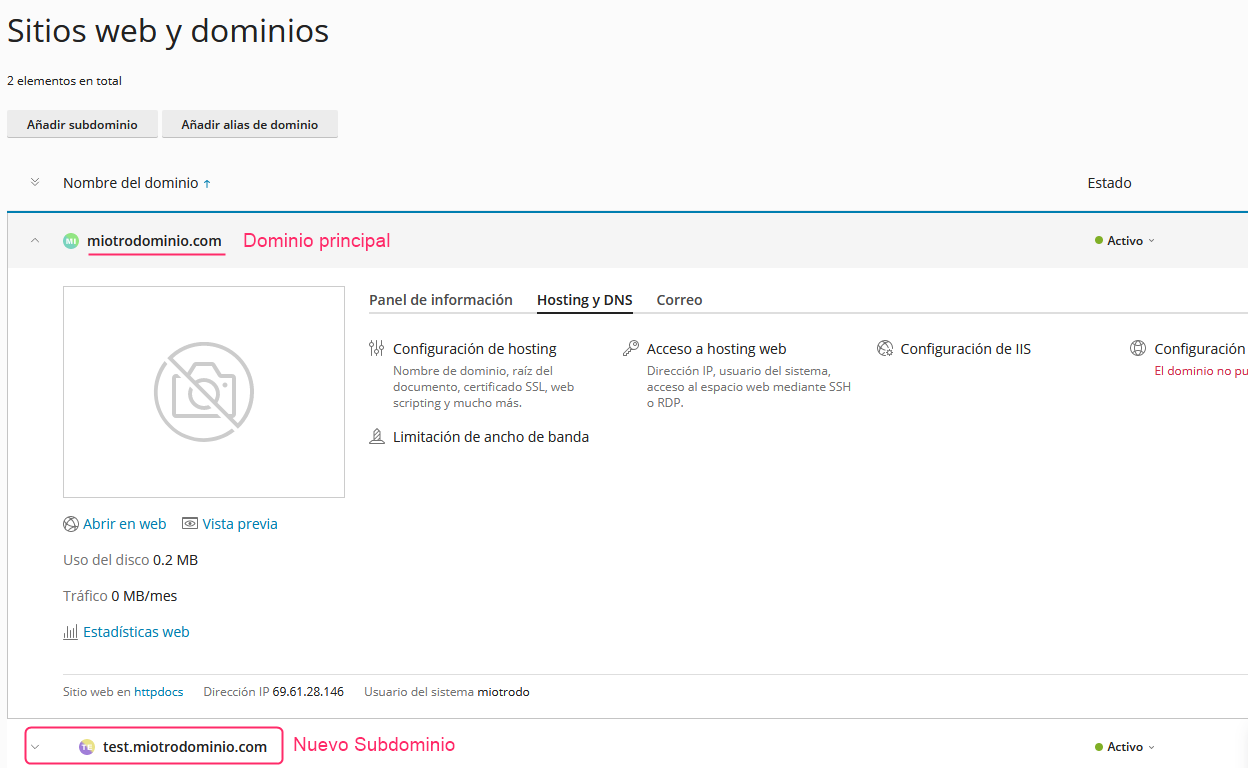
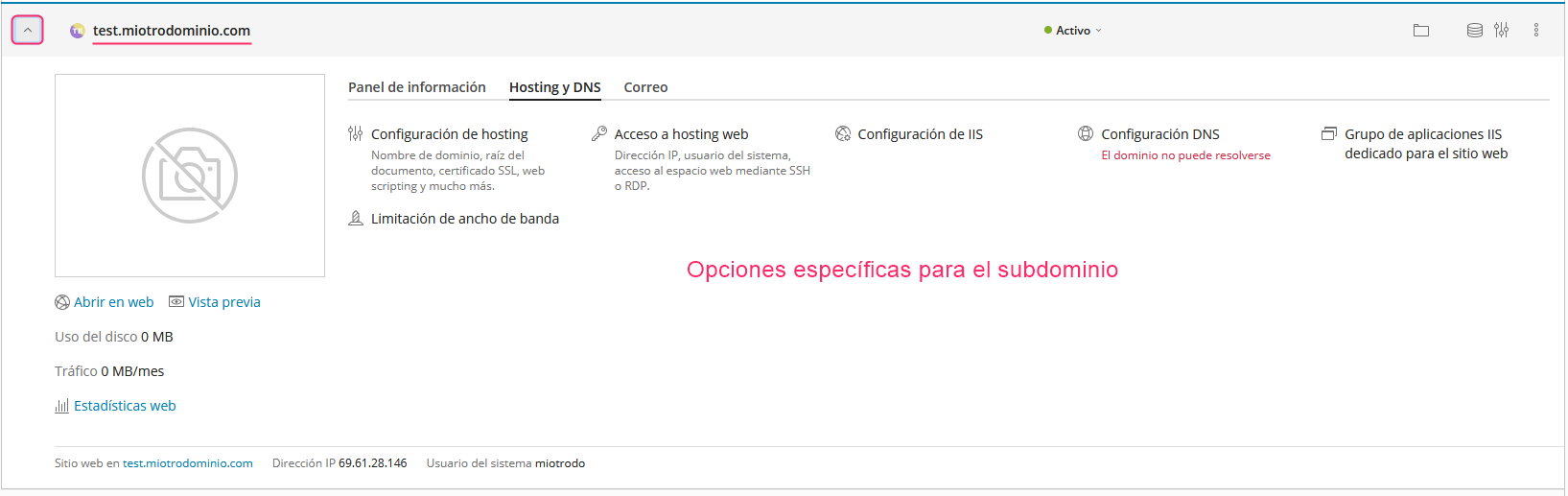
- When you create a subdomain you will see, in Websites & Domains, your main domain with its options and below it the new subdomain created. You can expand it to see its particular options.
The new subdomain will show the same options as your main domain so you can modify it as needed.
Creating an Alias
A domain Alias will display the same website as your account’s primary domain. Additionally, it will allow you to create mailboxes with the new domain.
Follow these steps to create an Alias:
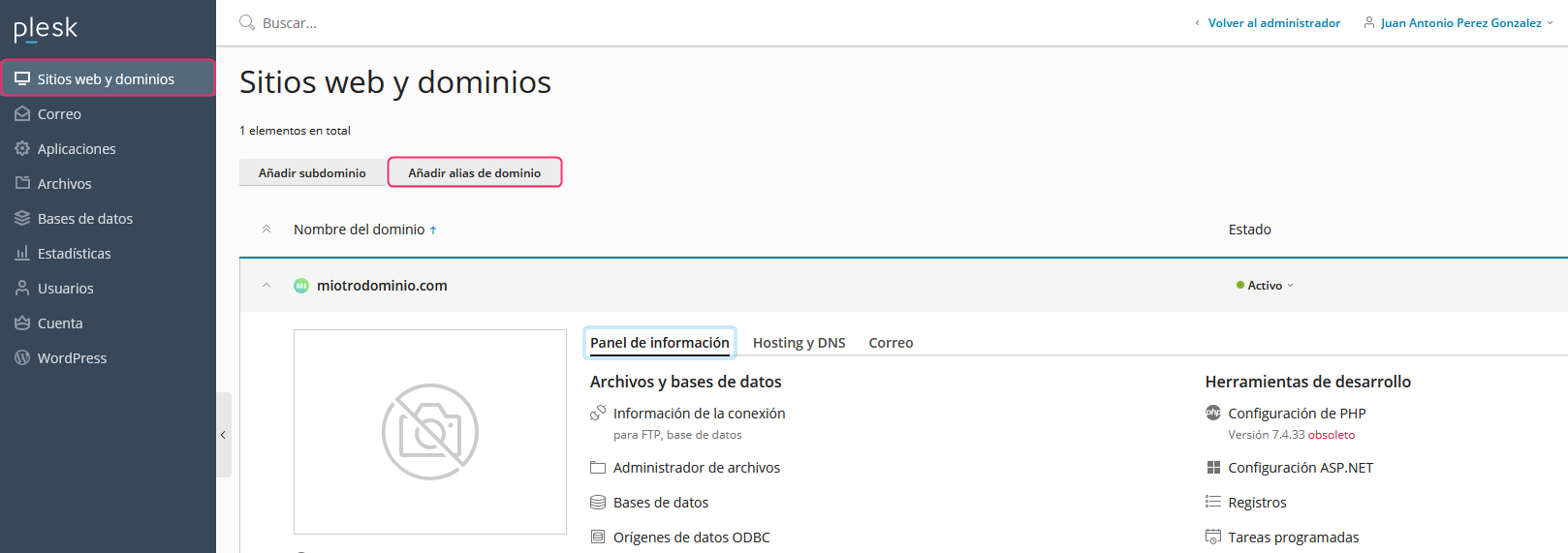
- To create an Alias go to Add Domain Alias. This option is inside Websites & Domains, in the left menu.
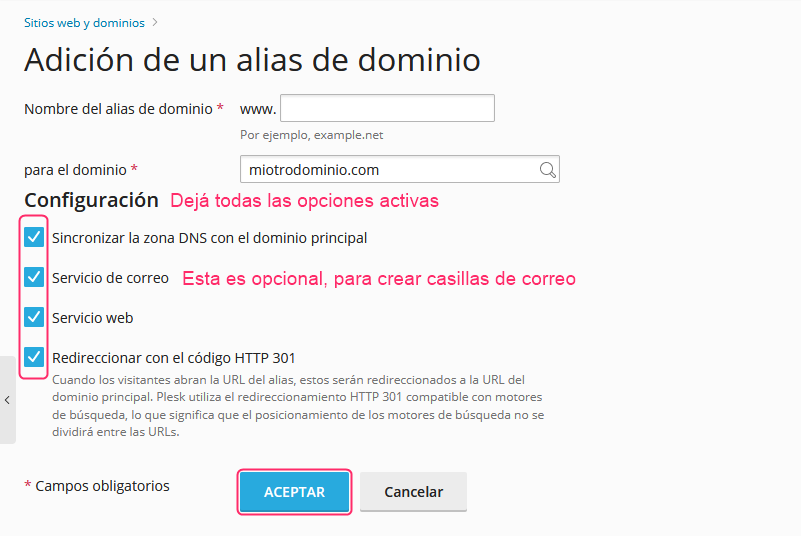
- The new screen will ask for the alias domain name and you can select some options. All should be enabled (by default) but you can choose not to check Mail service. This option will allow you to create mailboxes with the alias domain.
- That’s it! You will have created an Alias for your primary domain. From now on, in the fields where your primary domain appears, you will be able to choose between it and the new alias domain to generate the desired configuration.
Creating an Addon Domain
An Addon Domain will display a different, separate website from your account’s primary domain. Additionally, it will allow you to create mailboxes with the new domain.
Follow these steps to create an Addon Domain:
- In the options of the Websites & Domains area, which you will find in the left menu, press the Add Domain button.
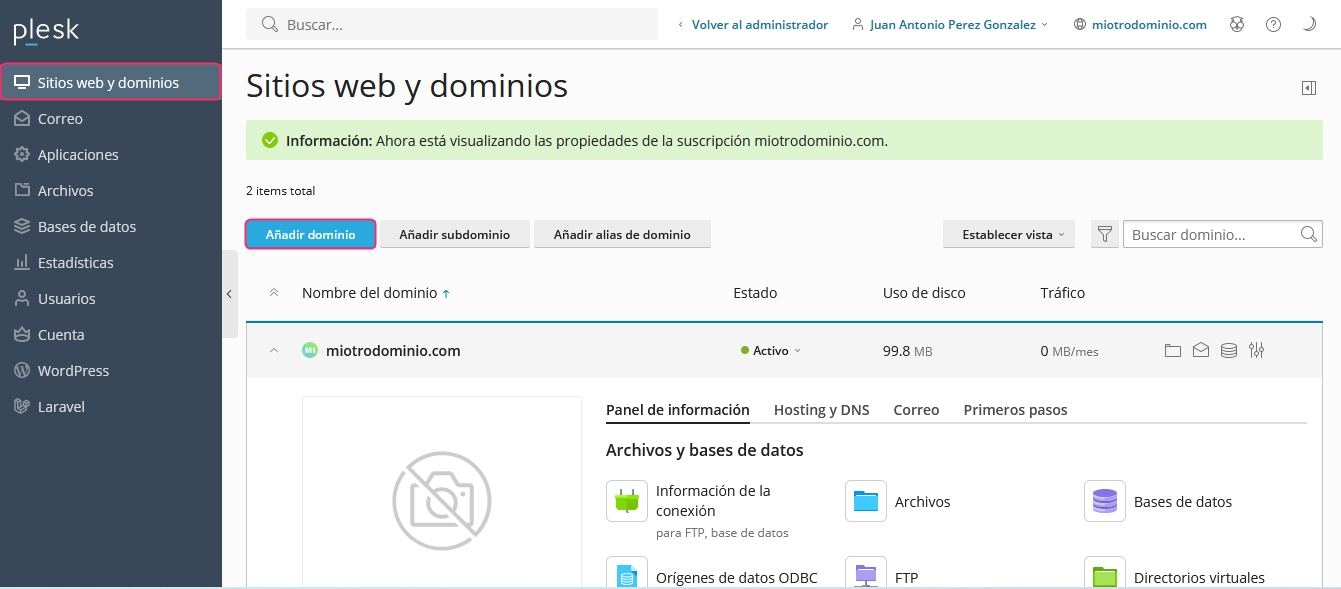
- A menu will open on the left where you can choose how to create this new Addon Domain.
For example, you can create a blank website, upload a website via FTP, create a WordPress site, etc.
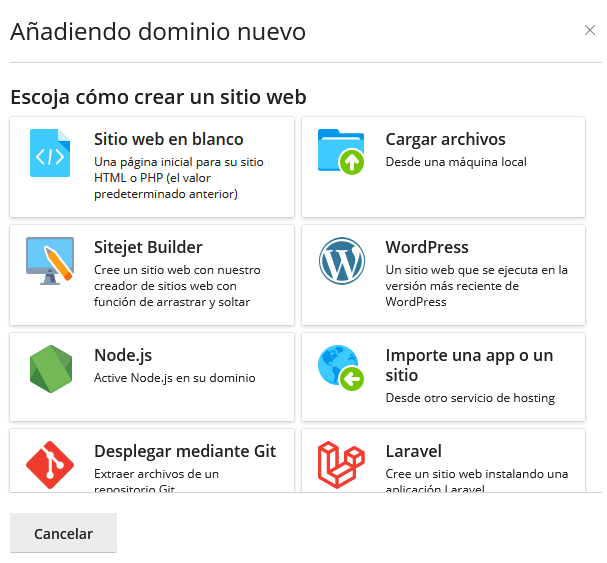
- Each of the previous options will expand steps to create the Addon Domain. Let’s look at the options for an empty Addon Domain:
1. First, you must choose whether the domain is already registered or not.
2. Then, enter the domain of the Addon Domain.
3. The web space is the main account to which the Addon Domain will be associated.
4. This option is very important. To host a website choose the Website hosting option. The other options will allow you to use the new domain as a redirect or to create mailboxes without their own website.
5. You must leave these two options enabled.
6. Open the Hosting Settings menu to see more options.
7. At this point you must choose the directory where the new website will be created.
8. In this step you can choose whether the website will be displayed with or without www automatically.
9. Once you have everything completed press the Add Domain button to finish.
.jpg)