
How do I associate my Client Area with another client’s?
Associating your Client Area with another user’s will allow that person to sign in and manage your account.
This can be useful if you want someone else to manage your account.
To associate your Client Area with another user, follow these steps:
- Log in to your Client Area.
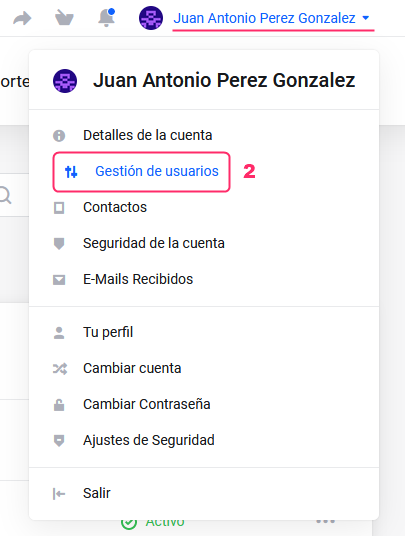
If you don’t remember how to sign in follow this link: How to access the Client Area - In your Client Area click on the client name you will see at the top right.
A menu will open. Go to “User Management”.
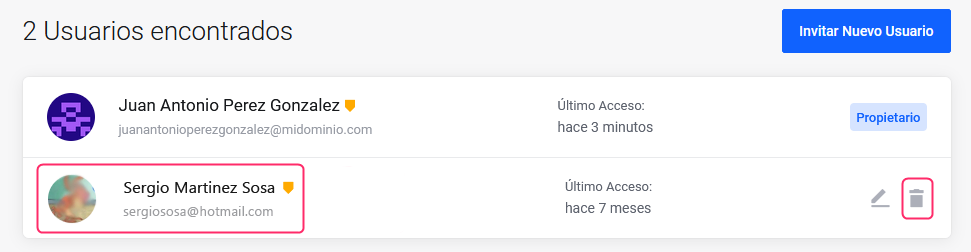
On the new screen, you will find the Client Areas already associated (including your own account), and options to associate your Client Area with another user’s. Here you will see:
- List of Client Areas already associated.
- Options to modify permissions or delete an associated Client Area.
- By pressing the “Invite New User” button you can associate a new Client Area.
.png)
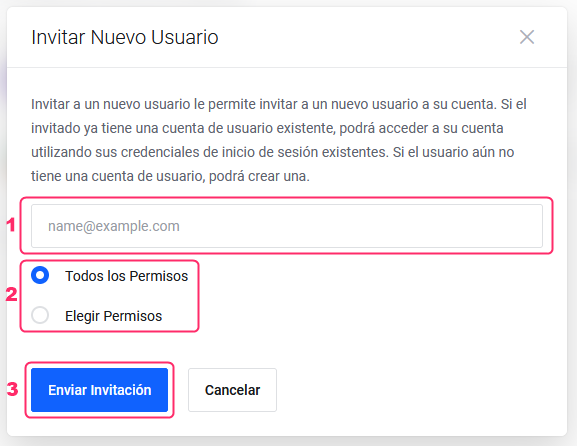
By pressing the button to invite a new user you will see:
- The field to enter the email of the user to associate.
The email you enter must be the one of the user’s Client Area you are trying to associate. - Access permissions. Select the permissions you will grant to the new user.
You can give them all permissions or choose some from the list that will drop down. - Once everything is configured, press the “Send Invitation” button.
Acceptance process:
- The user you want to associate will receive an email with a link to accept the invitation.
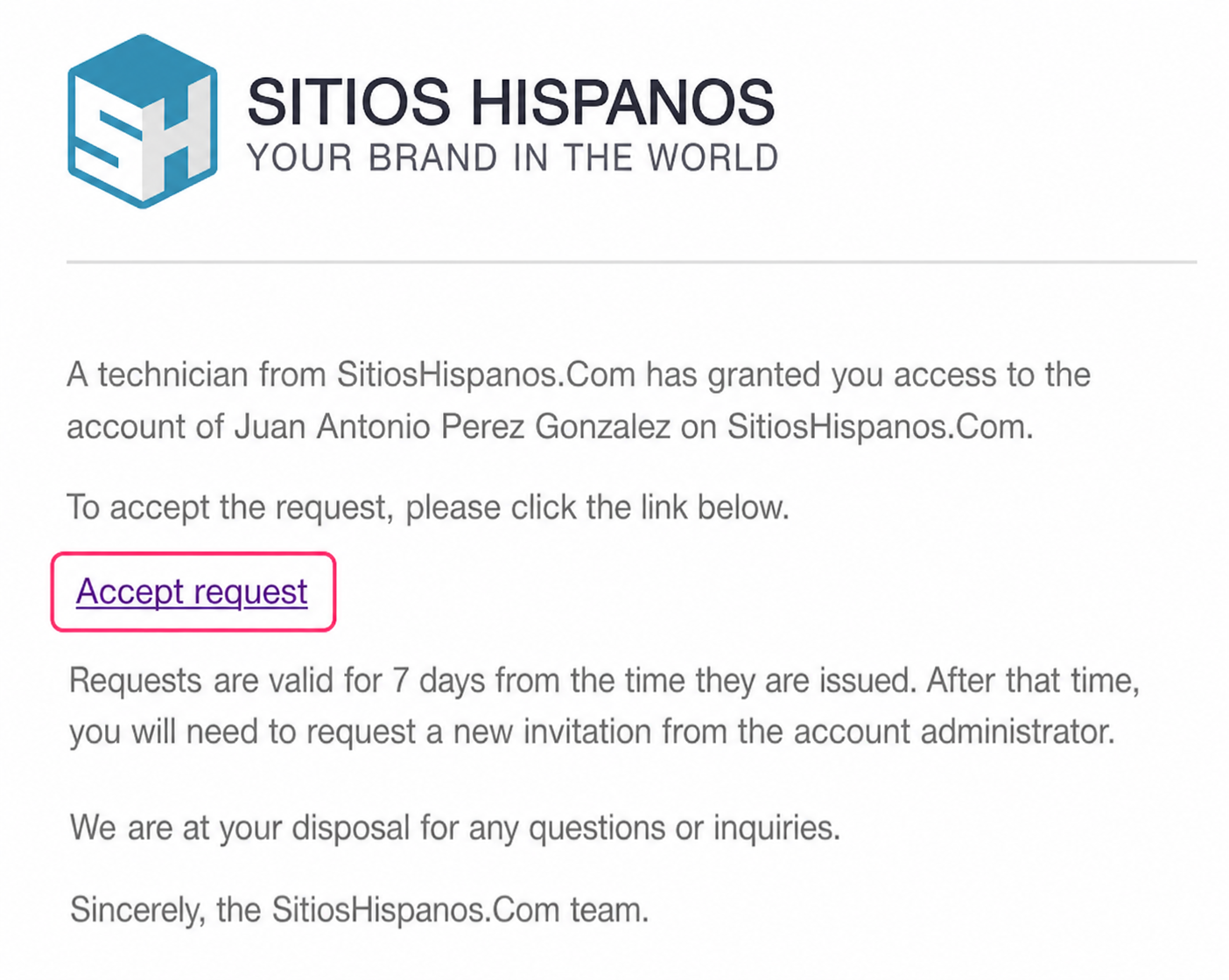
- The user will also see the invitation in their Client Area and must press the “Accept Invitation” button.
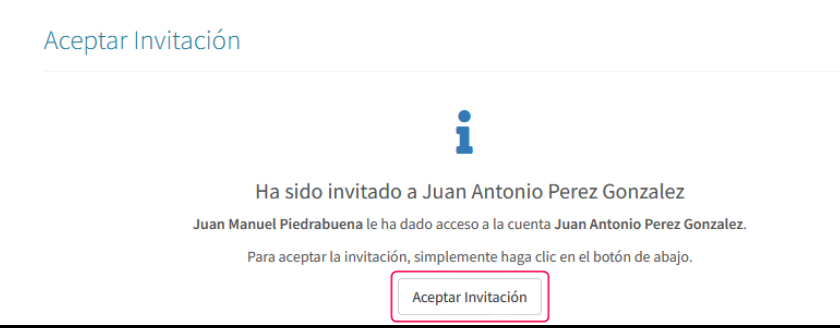
- From now on, the associated user will be able to choose which Client Area to access when signing in. Only the associated client will have this option.
To remove the granted access:
- Log in to your Client Area.
- In your Client Area click on the client name you will see at the top right.
Go to “User Management” in the dropdown menu.
- In the list of associated Client Areas you will be able to modify their permissions or remove their access completely.