

How do I add contacts to my lists?
There are several ways to reach the option to add contacts — it’s always the same Add contacts button:
When creating a new list, the screen will take you to the contacts area, where you’ll find the Add Contacts button.
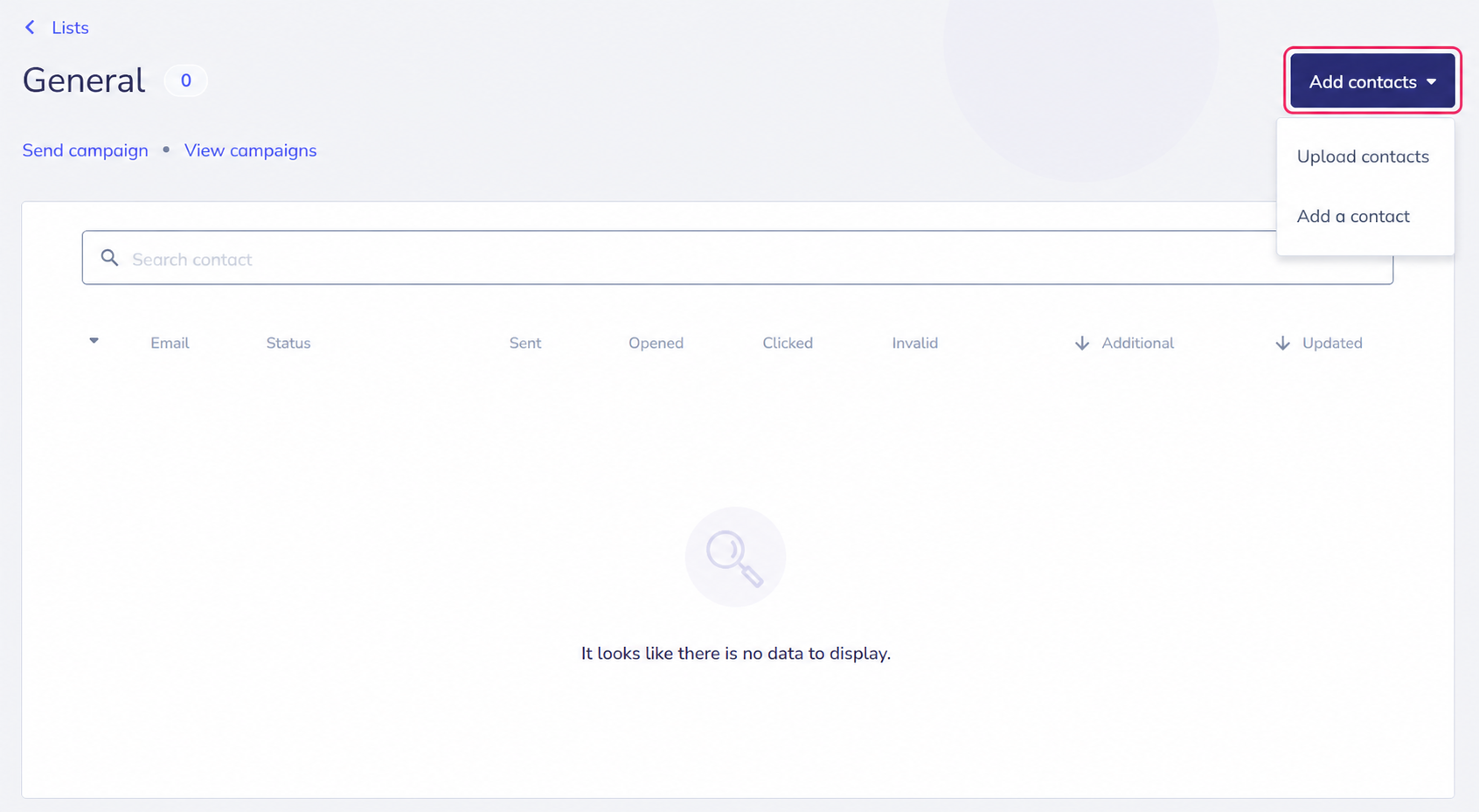
You can also find this button by going to Audience=>Contacts. In Overview you’ll see the Add contacts button (top right).

If you have several lists created and want to add contacts to a specific one, you can do it this way:
- Go to Audience=>Contacts in the left menu.
- Then go to Lists in the central options bar.
- You will see your created contact lists. Click on the one you want to add contacts to.
.png)
- You’ll arrive at the screen where you’ll see the contacts in the list and the Add contacts button.
The Add contacts button will show you the two ways to add contacts to your lists:
- Upload contacts: you can add multiple contacts from a contact base or file.
- Add a contact: you can add individual contacts.
If you want to add multiple contacts from an external file follow this step-by-step guide:
How to add multiple contacts from files or contact databases
If you want to add individual contacts follow this other step-by-step guide: