

How to enable SSL for a domain in HestiaCP?
To enable an SSL certificate for a domain, it must have a web space created under a USER.
The domain must point to the server from which the SSL certificate will be installed.
Once those two requirements are met, to install SSL you must follow these steps:
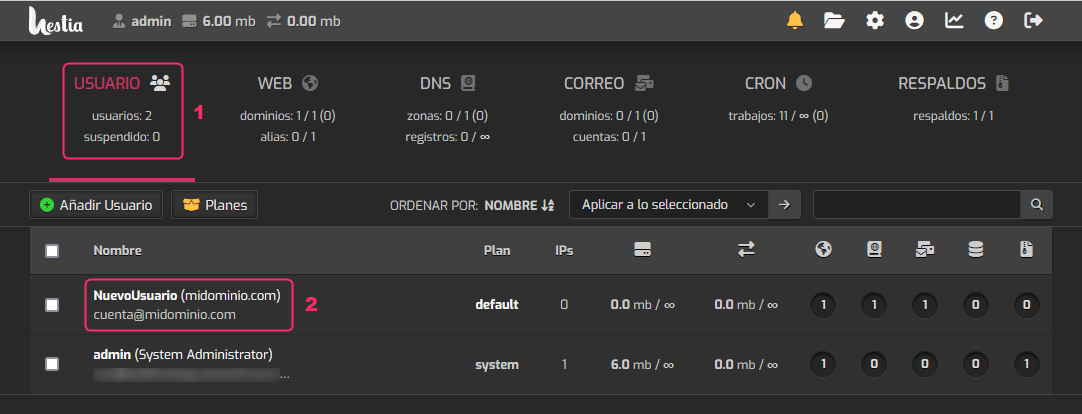
- Log in to the USER area
- Click on the user that has the domain to configure.
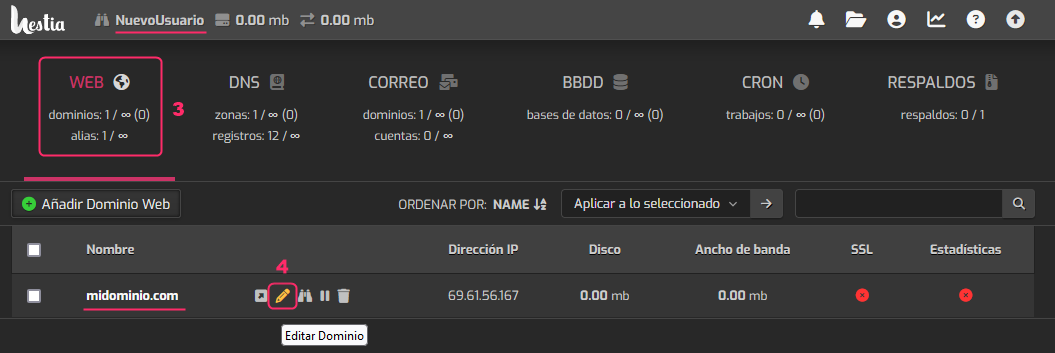
- You should be in the WEB area upon entering the new screen.
- Hover your mouse to the right of the domain you want to enable SSL for.
You will see a pencil icon. Click that option.
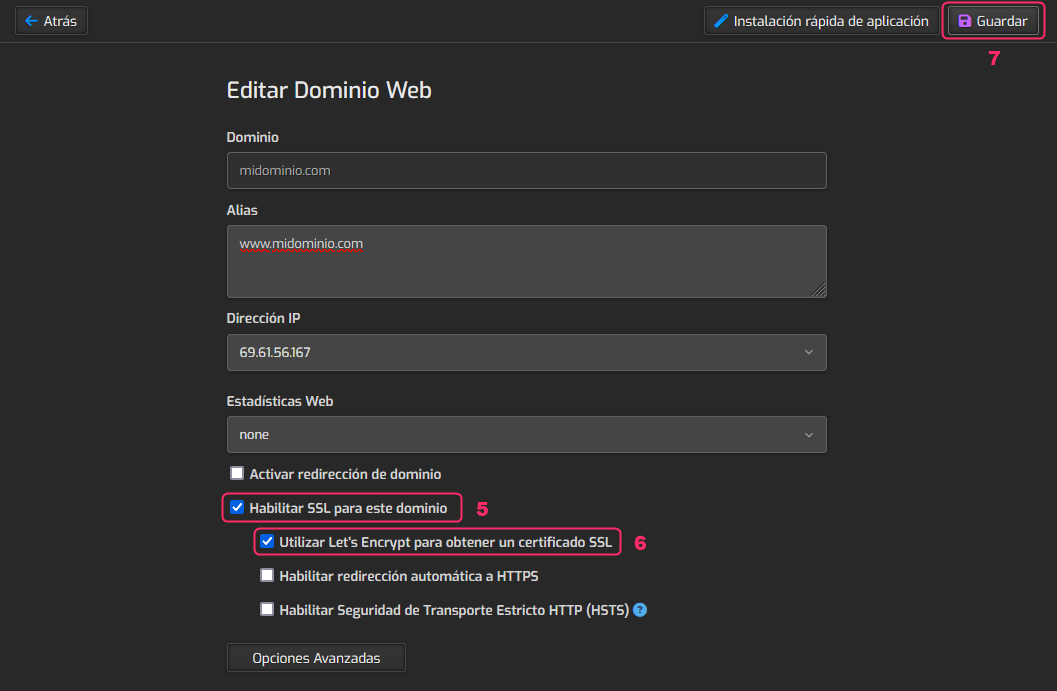
- In the domain options you must enable Enable SSL for this domain.
- Then, enable Use Let’s Encrypt to obtain an SSL certificate.
- Finally, press the Save button at the top right to save the changes.
After a few minutes the SSL certificate will be installed on the domain.