
Graphical Template Editor
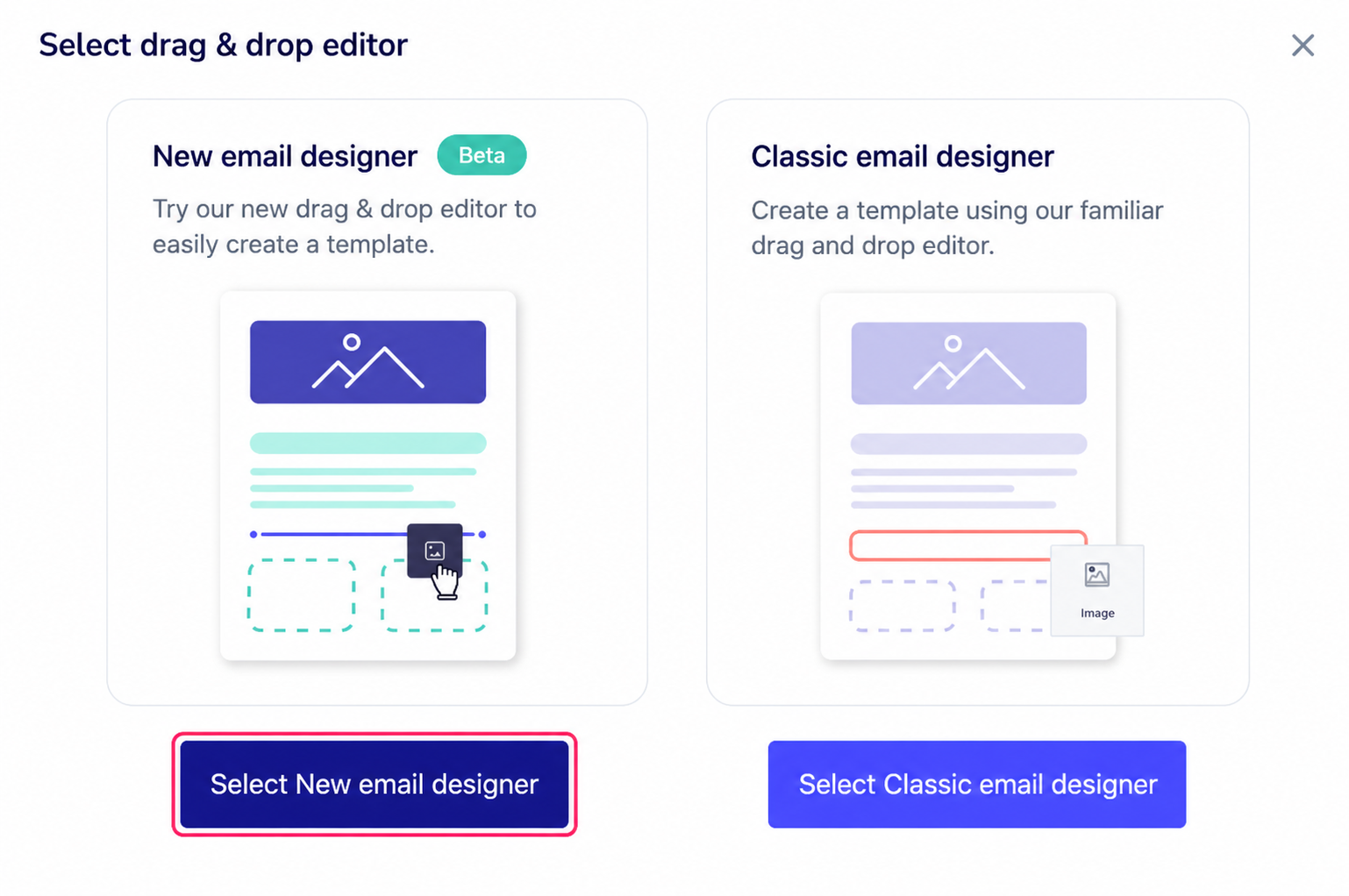
Upon entering the Graphical Editor for templates you will see two options.
You can choose between using the new editor or the classic editor.
We recommend using the new editor.
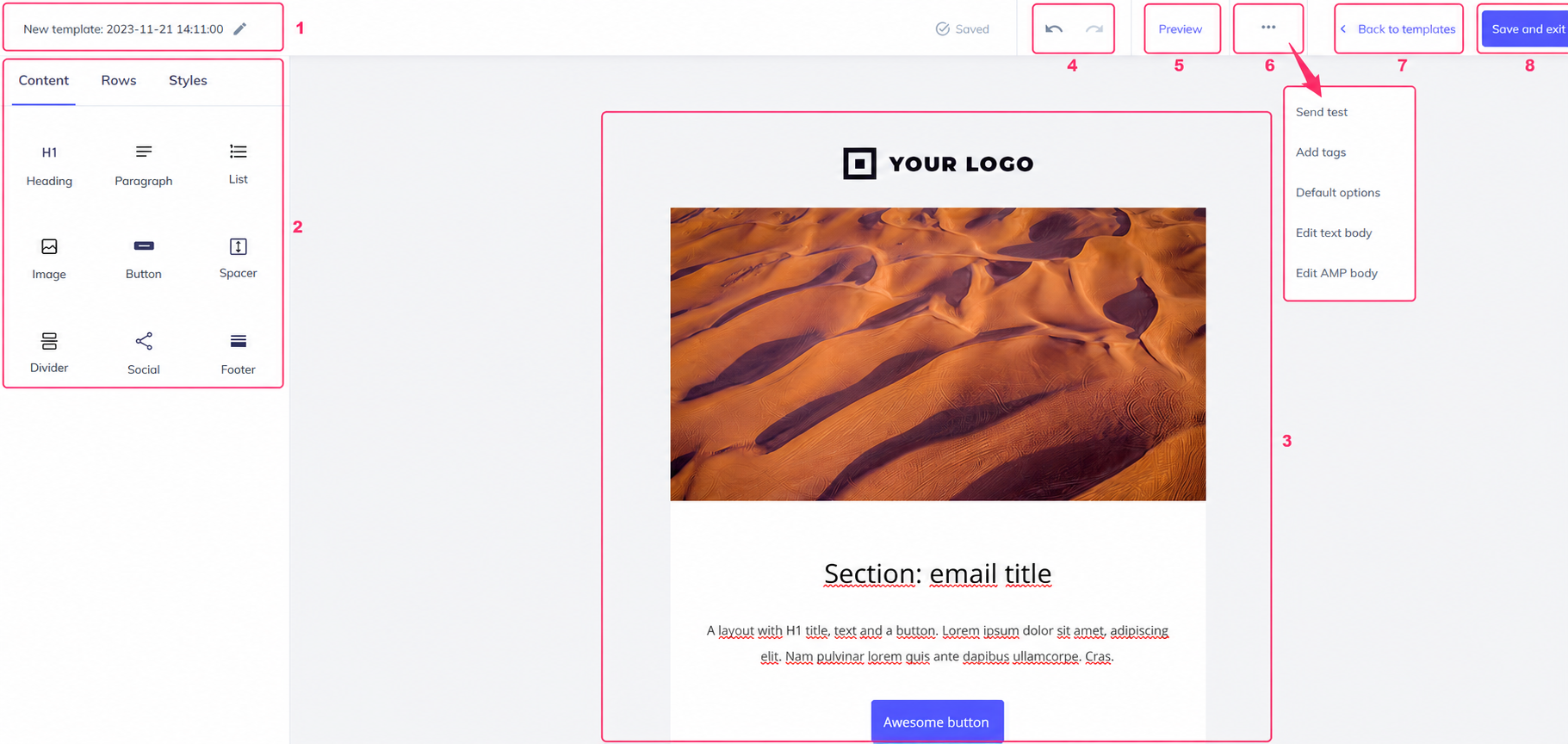
The template editor consists of the following areas:
- Template name.
- Objects panel to design your template.
- Canvas of your created template.
- Buttons to undo or redo a change.
- Preview will display a preview of the template.
- The button with three dots will open a menu with several options:
- Send test: used to send a test with the template currently being edited.
- Add tags: you can add tags to the template.
- Default options: you can save a default From and Subject to use with this template.
- Edit text body: you can create a default message body if you don’t define one when using this template in a campaign.
- Edit AMP body: you can create a default AMP if you don’t define one when using this template in a campaign.
- Back to templates will return to the previous menu; your template editing will be saved automatically.
- With the Save and exit button you will save the changes and exit to the previous screen, where you will see all your templates.