
La two-factor authentication adds an extra layer of security to your login.
When logging in, the system will ask for your username and password together with a second factor, which will be a code generated on your mobile phone.
To configure two-factor authentication in your Client Area follow these steps:
If you don’t remember how to sign in follow this link: How to access the Client Area
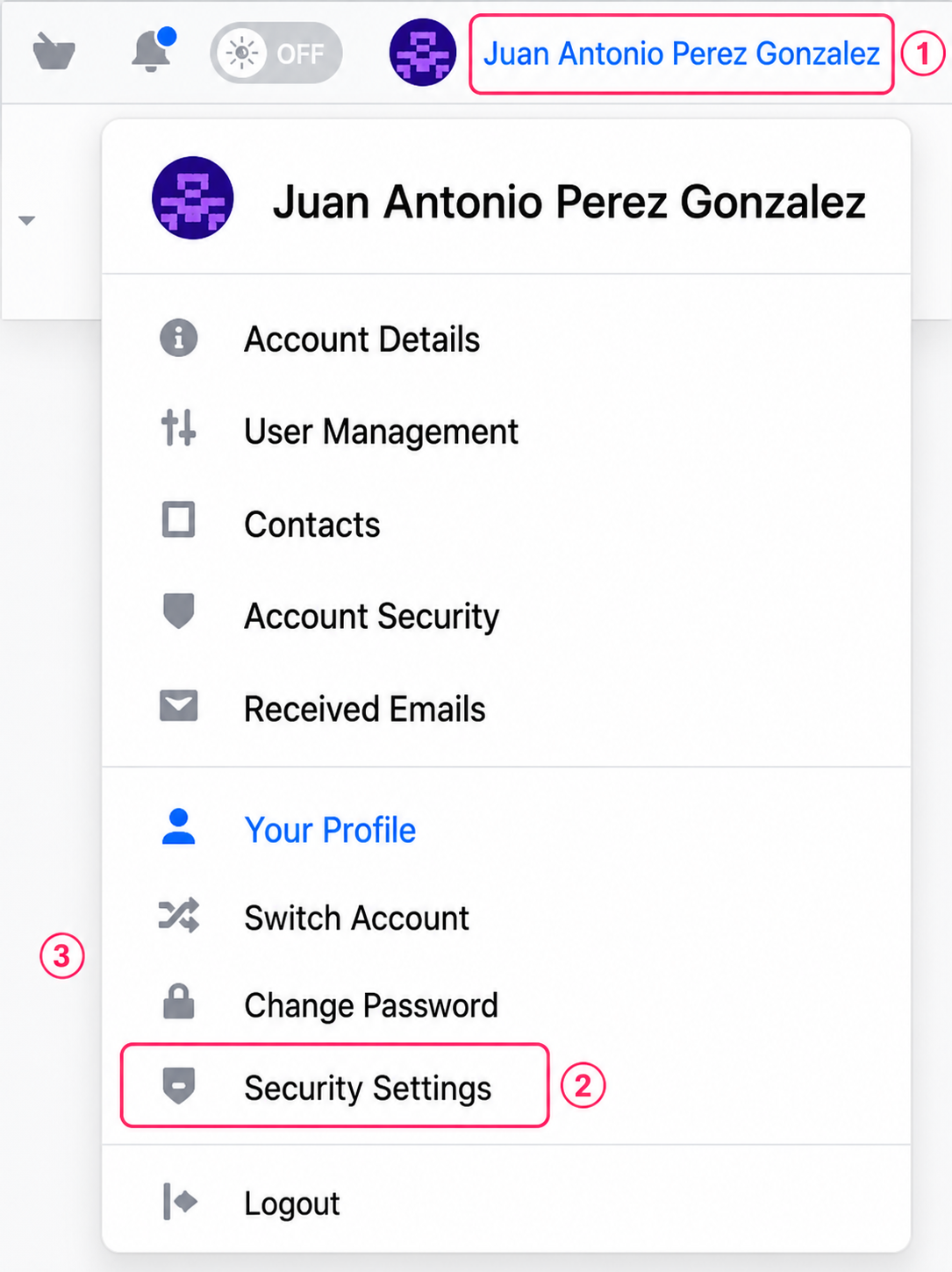
- Log in to your Client Area and then click on your username at the top right.
- In the dropdown menu go to Security Settings.
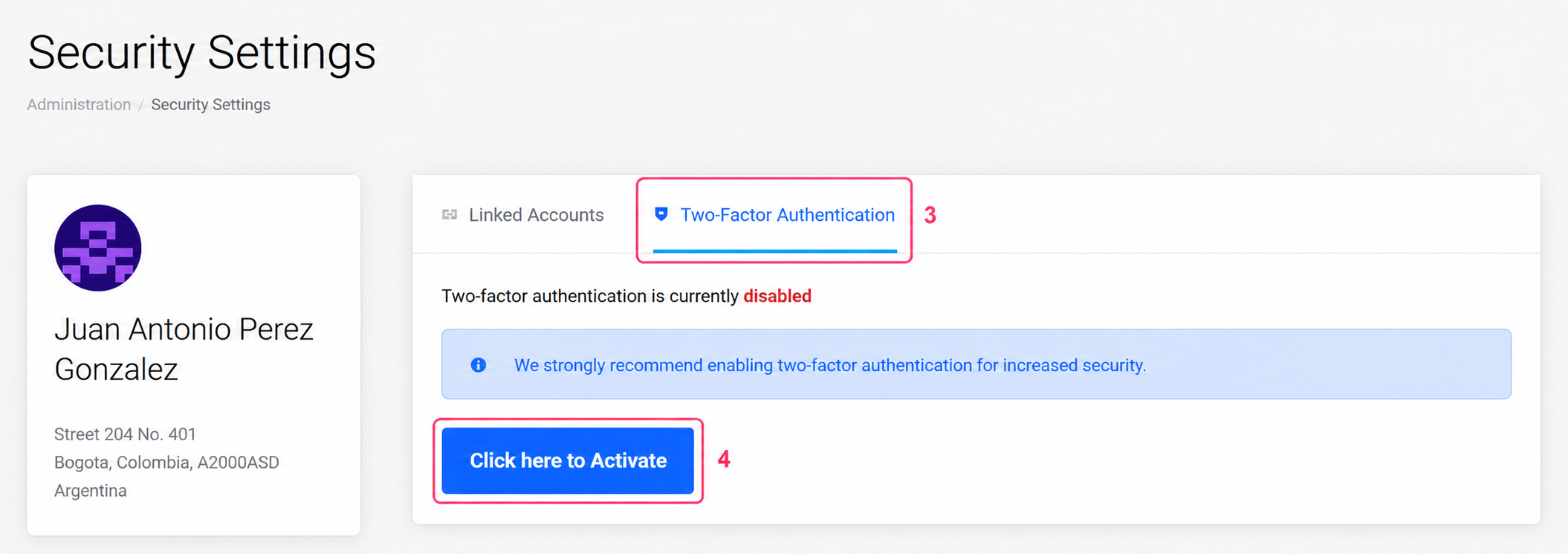
- On the new screen, select the Two-factor Authentication tab.
You will see the current status of this protection below. - Press the Click here to Activate button.
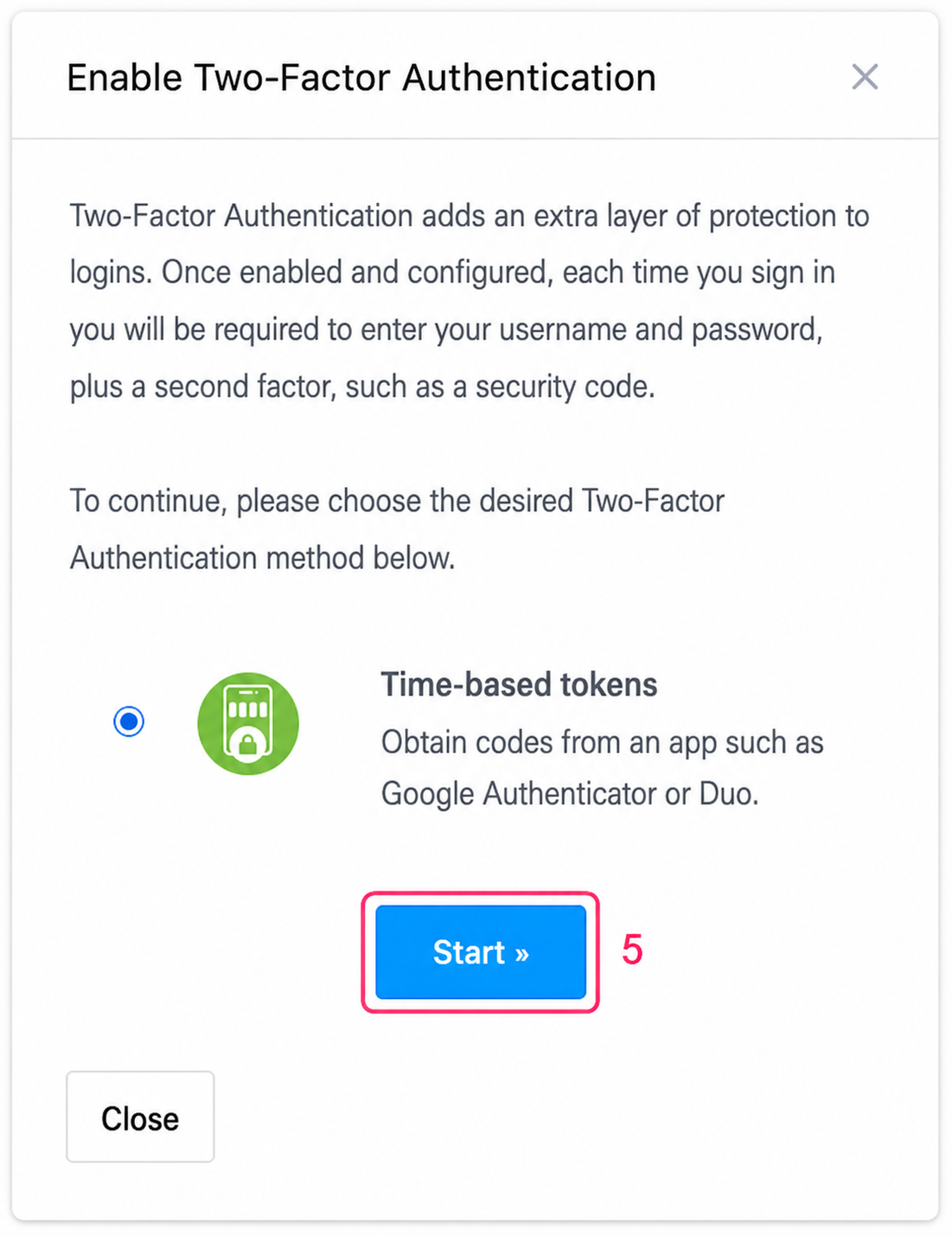
- You will see a brief explanation of this security mechanism. Below, press the Start button.
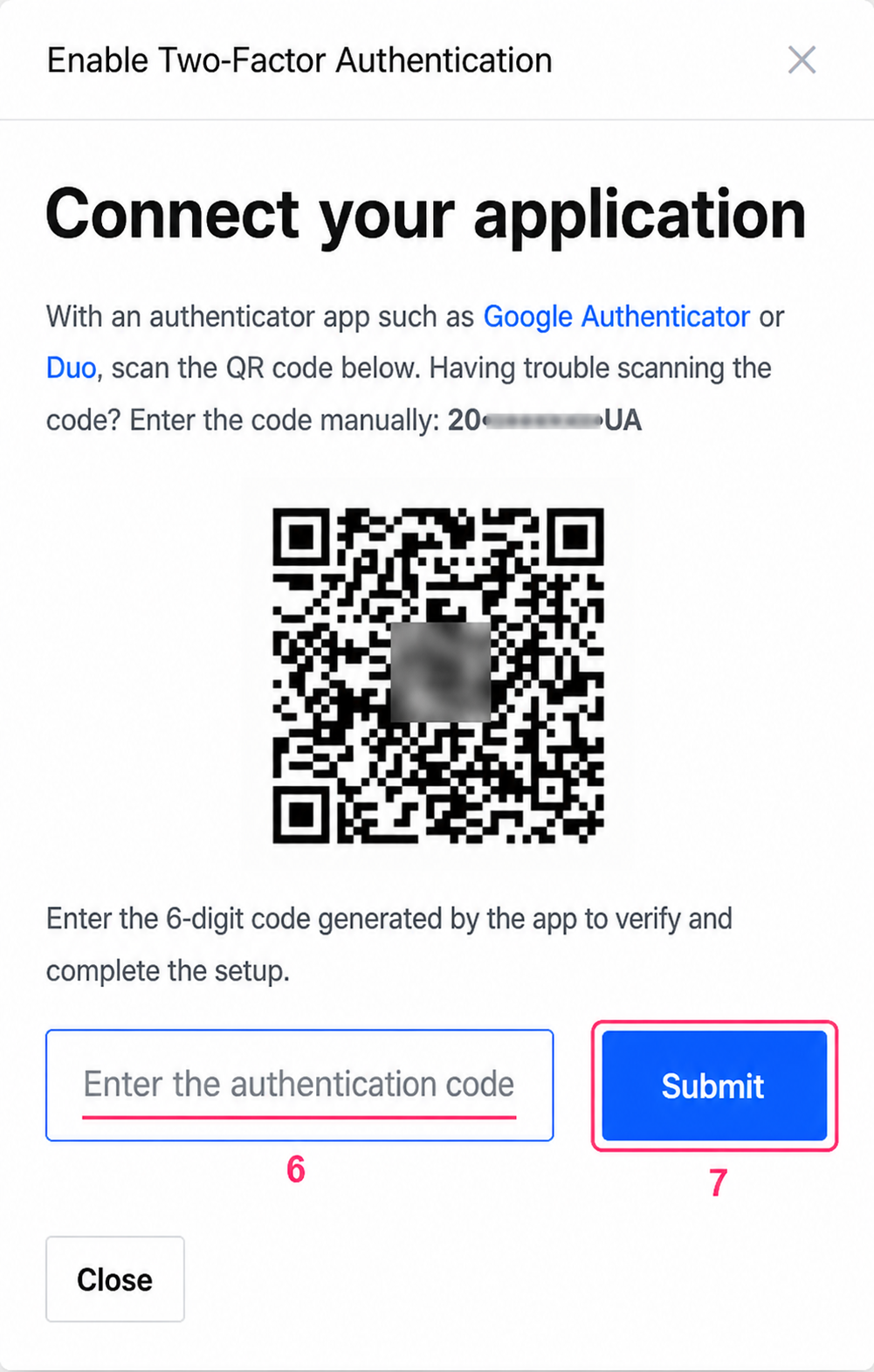
- From the app of your choice on your phone, such as Google Authenticator or Dúo, scan the QR code to generate a new authentication code.
Enter that 6-digit code in the box. - Press the Submit button to continue.
-
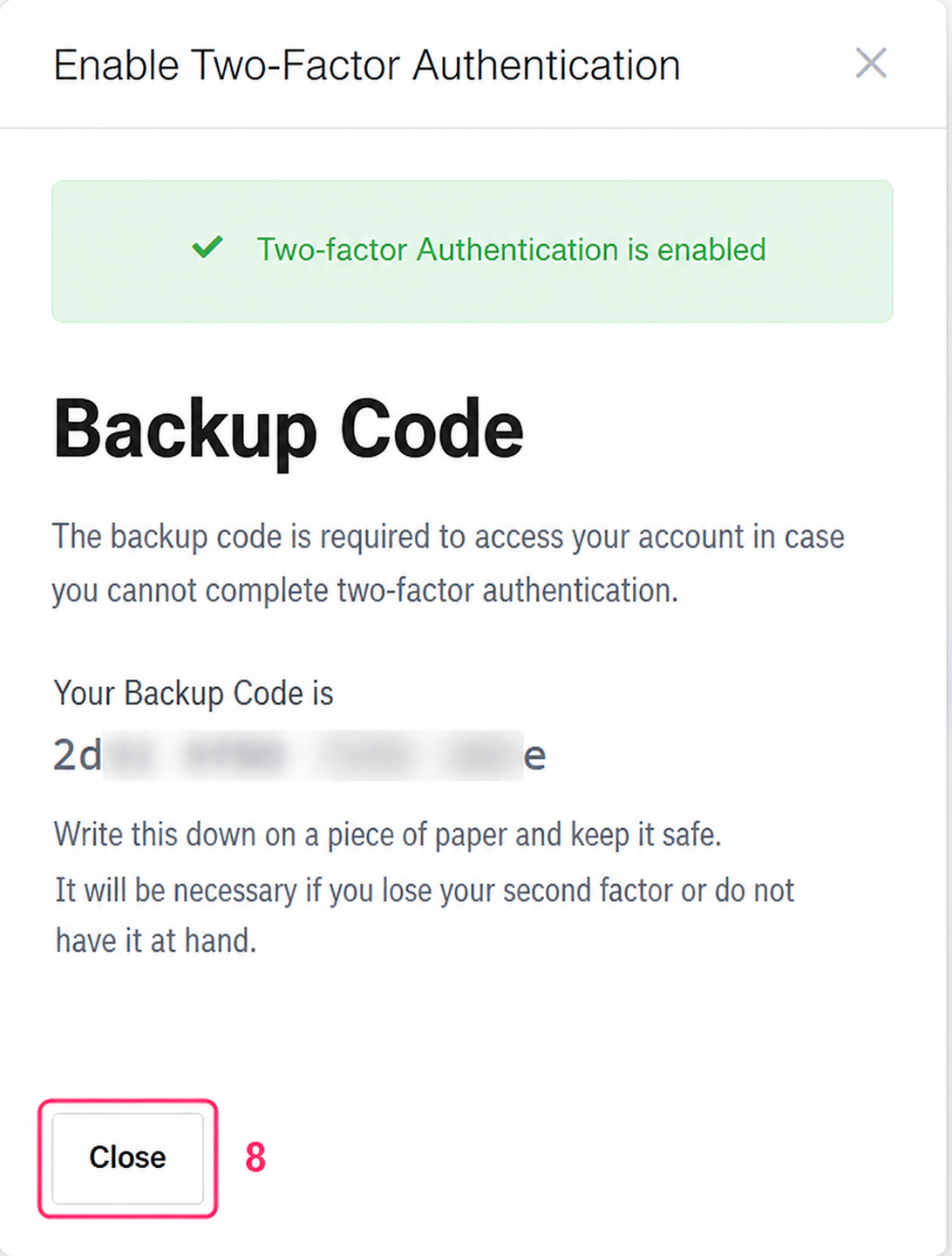
Upon confirming your 6-digit code the system will show that it was enabled.
If you have a problem accessing the Client Area do not hesitate to contact technical support. Or you can recover your access using the backup code.\Pressing the Close button will finish the process.
That’s all. We recommend enabling this additional security measure for your Client Area to make it much more secure.
How to disable two-factor authentication:
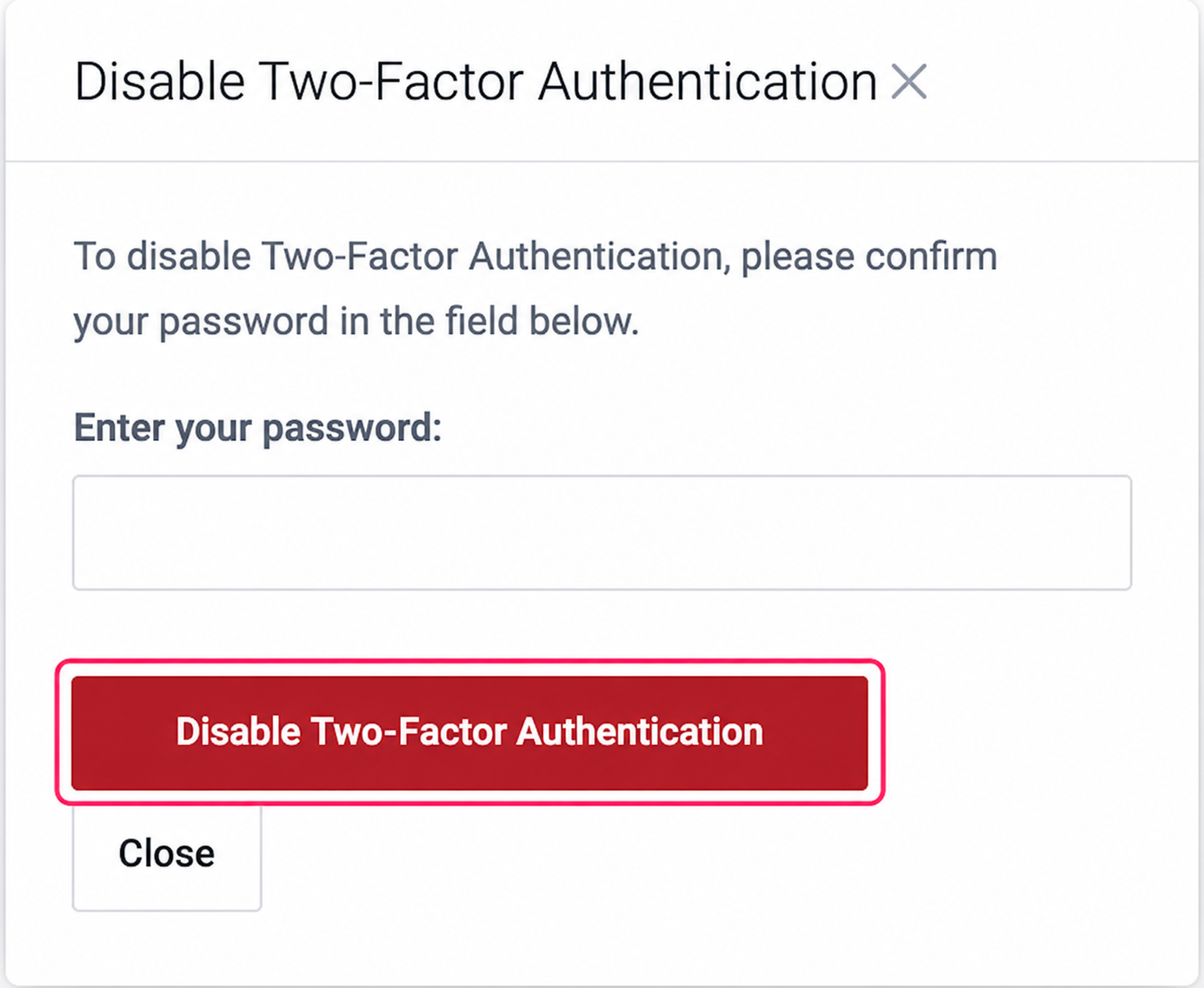
- By going to your Client Area => Security Settings you can disable two-factor authentication if it is active.
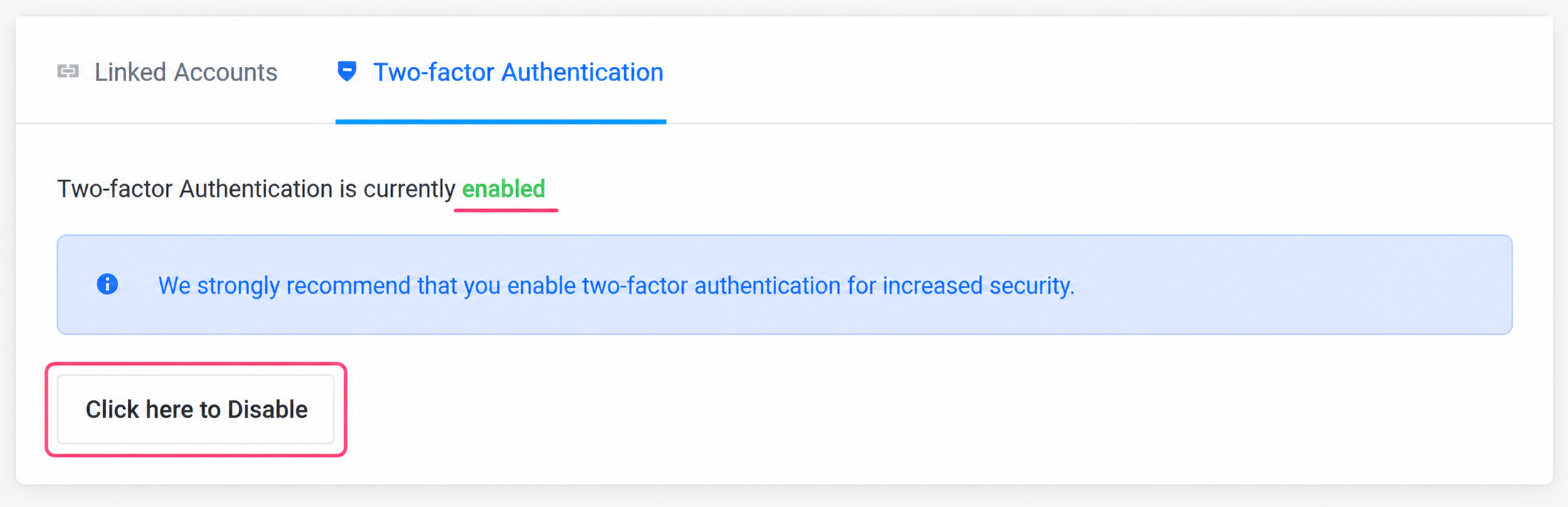
- You will need to enter your Client Area password to be able to disable two-factor authentication.