

How to configure my email account in Gmail?
Below we’ll show you how to configure a mailbox in the Gmail email client.
- Sign in to gmail.com with your credentials. In the top right corner, click the gear icon and press See all settings.

- On the new screen, click the Accounts and import tab, then look for the section Check mail from other accounts and go to Add a mail account.
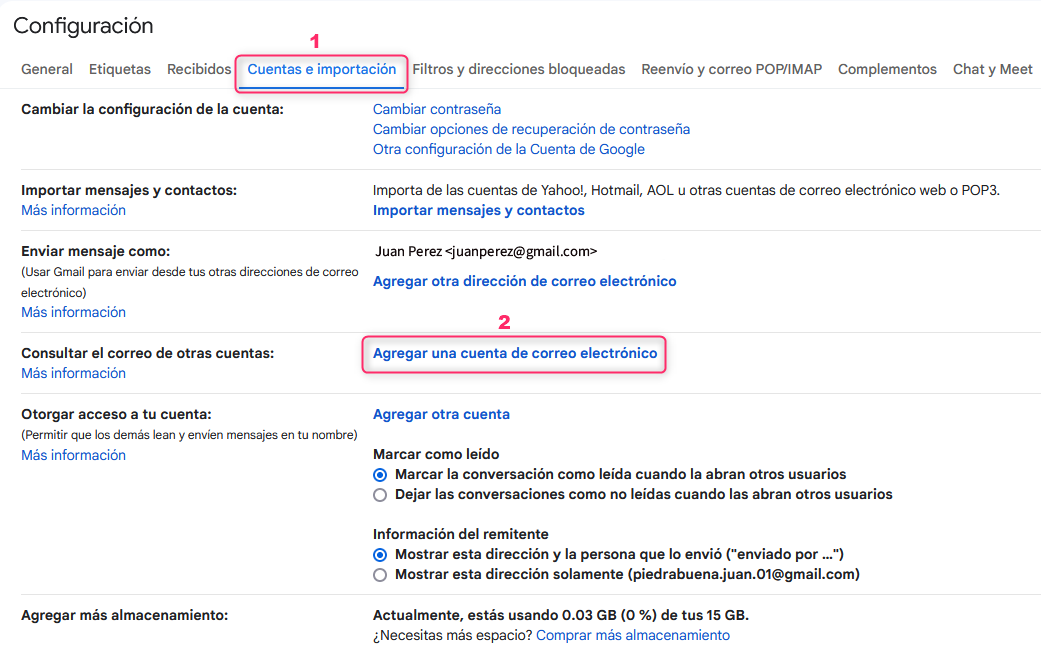
- On the new screen enter the email address to add and press Next
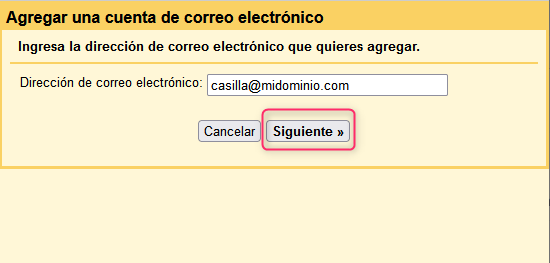
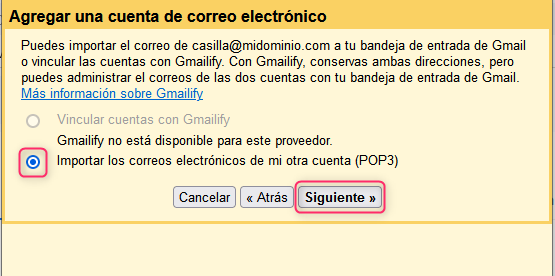
- Select Import emails from my other account (POP3) and then press the Next button.
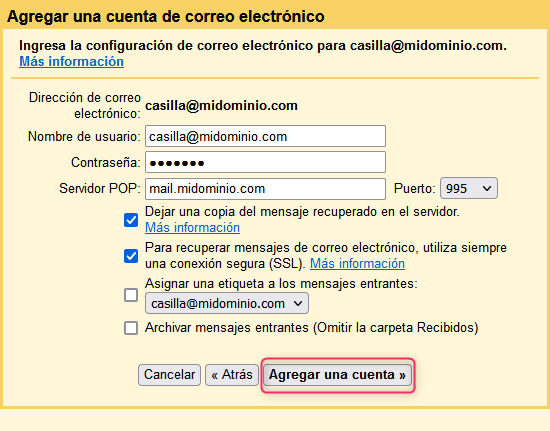
- Fill in your account details as shown in the image, adding your domain when applicable. With this, you will have added your new account to Gmail.
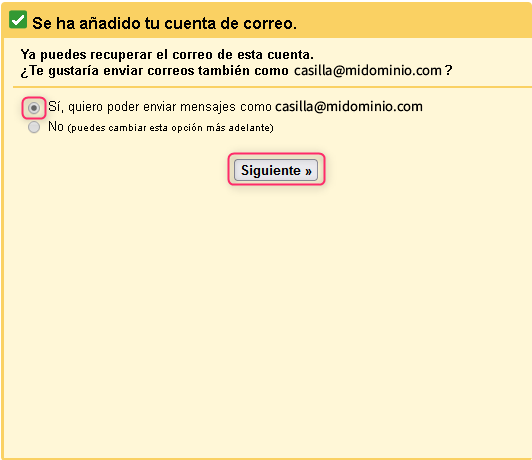
- Now, choose whether you want to use your new account to send emails. If you do, choose the first option and then press the Next button.
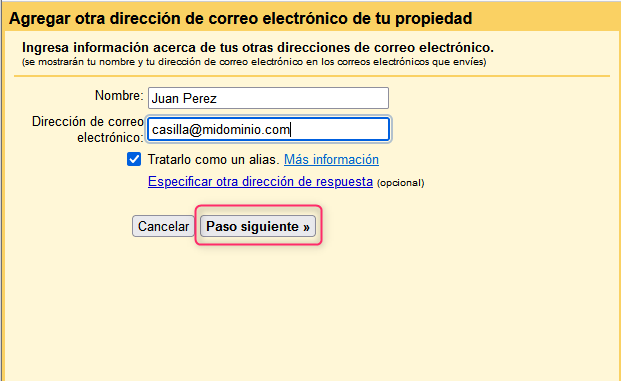
- On the new screen enter the name you want to display when sending your messages and press the Next Step button.
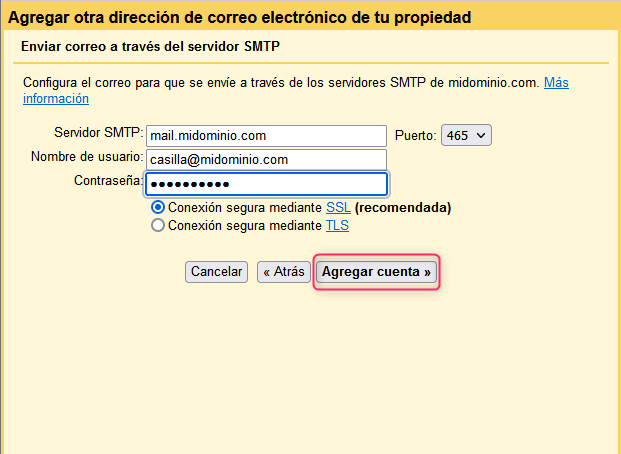
- Fill in the SMTP server details for sending mail as shown in the image. Replace with your domain when applicable.
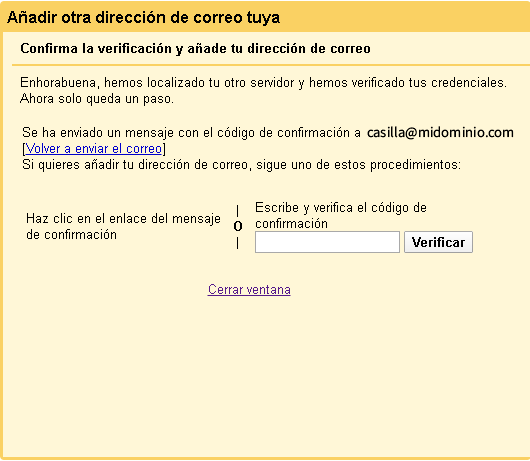
- After the entered data is verified, you will receive an email with a confirmation code to finish adding the account. You can choose two methods:
- Click the link in the confirmation message
- Enter and verify the confirmation code. Enter the code and press the Verify button.
Once these final steps are completed, your account will be enabled to send emails in Gmail.