

How to obtain IMAP and POP3 data to configure my email account?
Hashtags: #SMTP #Configuration #cPanel #Plesk #HestiaCP
To set up your mailbox in an external mail client such as Outlook, Thunderbird, Apple Mail, Gmail, etc., you will need the IMAP or POP3 connection details.
You will find these details by accessing the area where mailboxes are created in your control panel:
If you want to know the differences between IMAP and POP3 go to this link.
To configure your mailboxes in external mail clients follow this link.
IMAP and POP3 data in cPanel
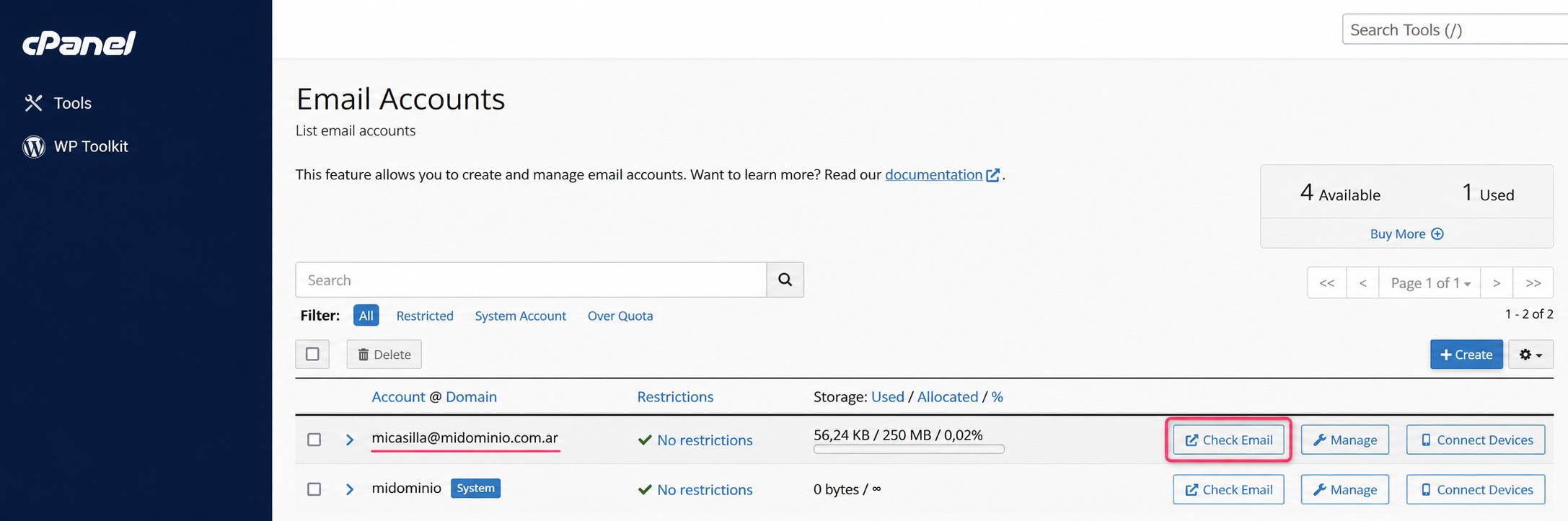
- Access the Email Accounts area in the control panel. Then click Check Email
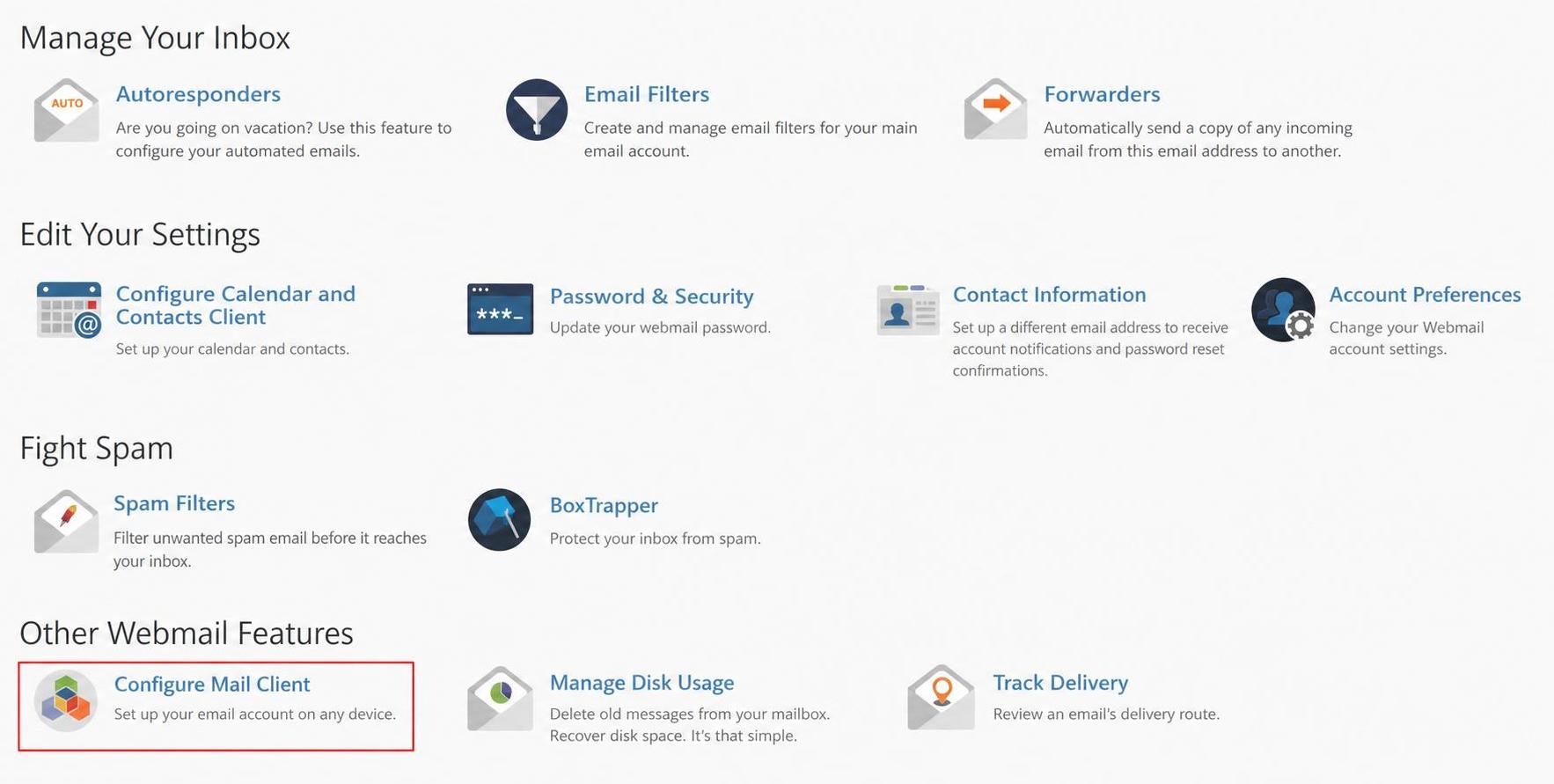
- In the new screen go to the Configure Mail Client option
- On this screen you will find the details to configure your mailbox in POP3 or IMAP mode.
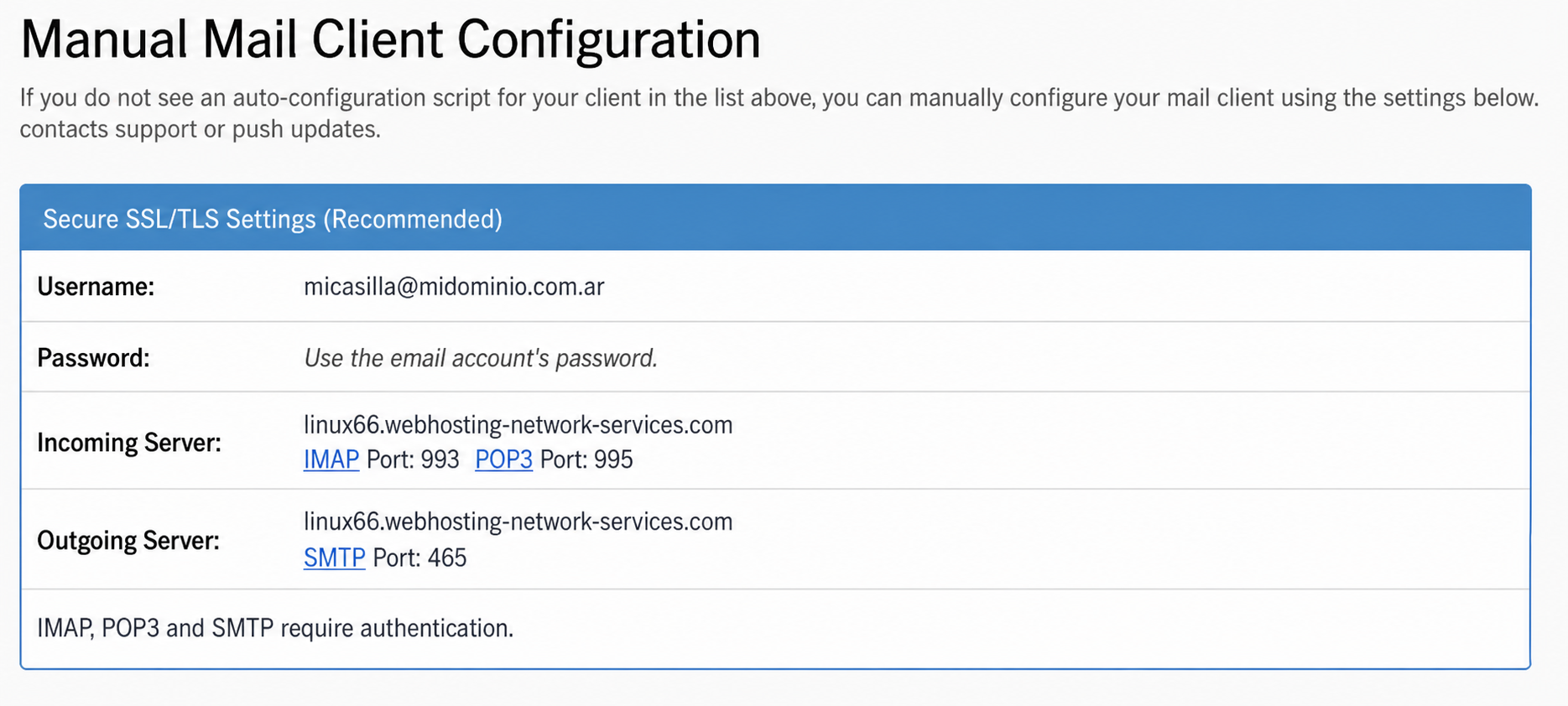
- That’s it — with those details you can configure your mailbox on any external device.
IMAP and POP3 data in Plesk
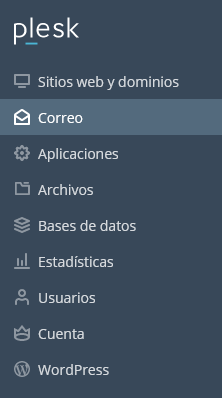
- Log in to the Plesk control panel. Then look for the Mail option in the left menu.
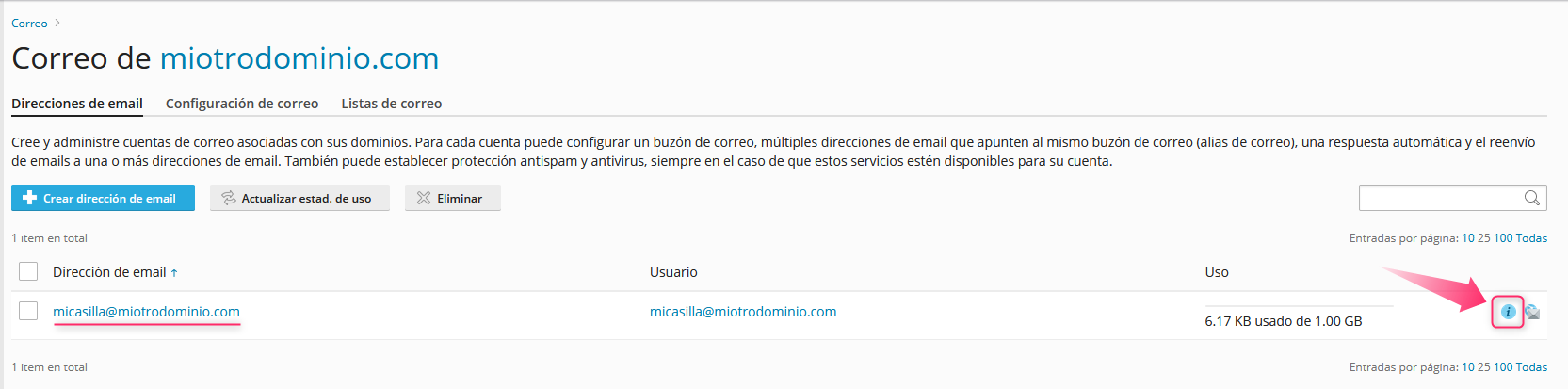
- On this screen you will see the list of created mailboxes. On the right, you will see an icon to view the POP3 or IMAP configuration.
- In the screen that opens click Manual Configuration. You will see the POP3/IMAP configuration details below.
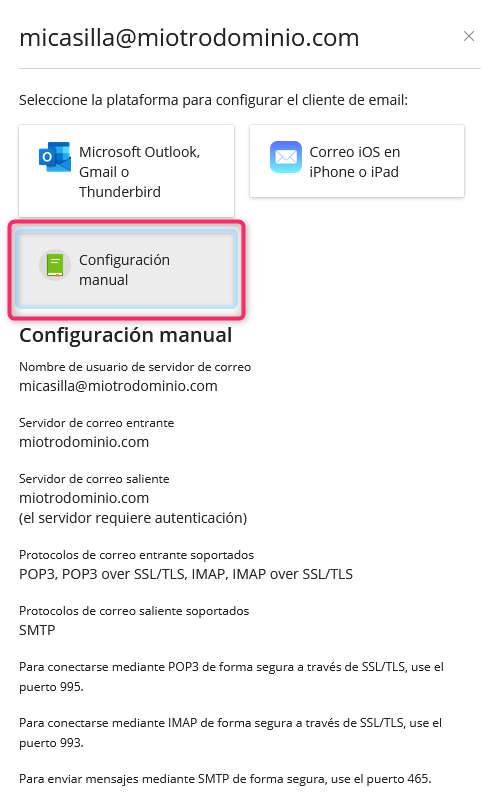
- That’s it — with those details you can configure your mailbox on any external device.
IMAP and POP3 data in HestiaCP
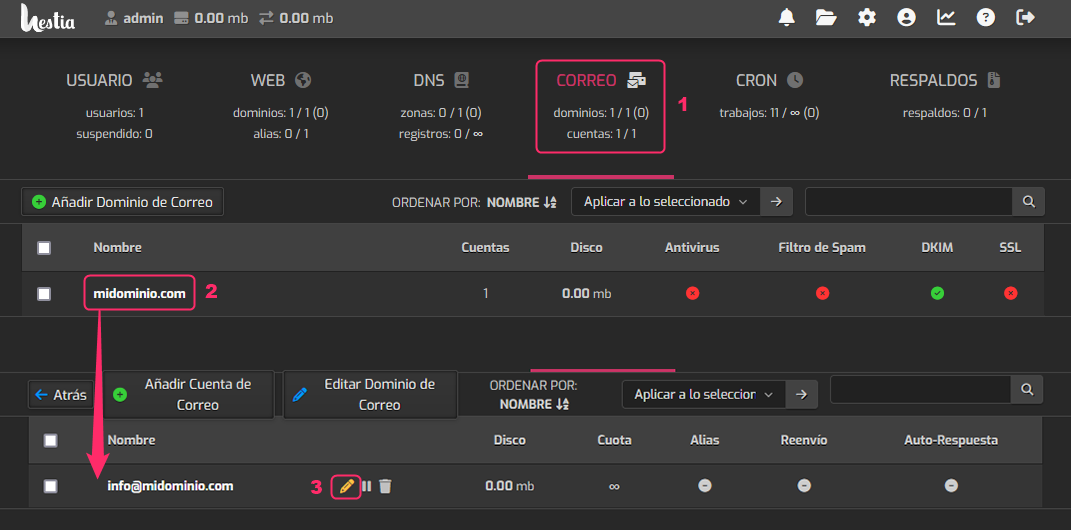
- Log in to the HestiaCP control panel and then look for the MAIL area.
- Click the domain of the mailbox you want to modify.
- You will see the list of created mailboxes. On the right, click the pencil icon.
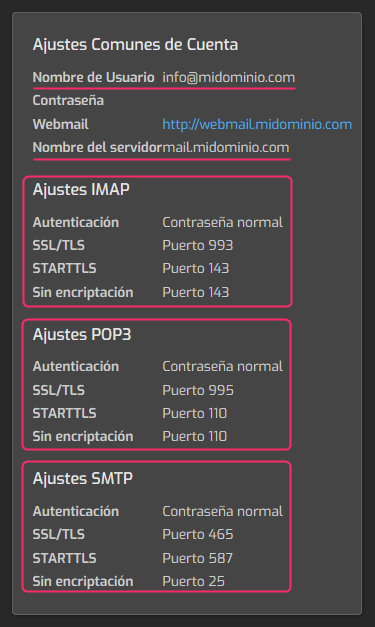
On the right, you will see the IMAP and POP3 connection details for that mailbox.
Differences between IMAP and POP3
IMAP
An email account configured in IMAP mode lets you synchronize your mail in real time with the server. Emails you receive in your mailbox are not downloaded to your PC or device; instead you see the content that exists on the server. Changes you make to the mailbox from any of your devices, such as deleting emails, will be reflected directly on the server.
POP3
POP3 mode will download a copy of the emails in your mailbox to your PC or device. Once downloaded to your device, they are removed from the server unless you enable the option to leave a copy on the server. POP3 mode allows you to check the same mailbox from different devices without affecting your content on the server.