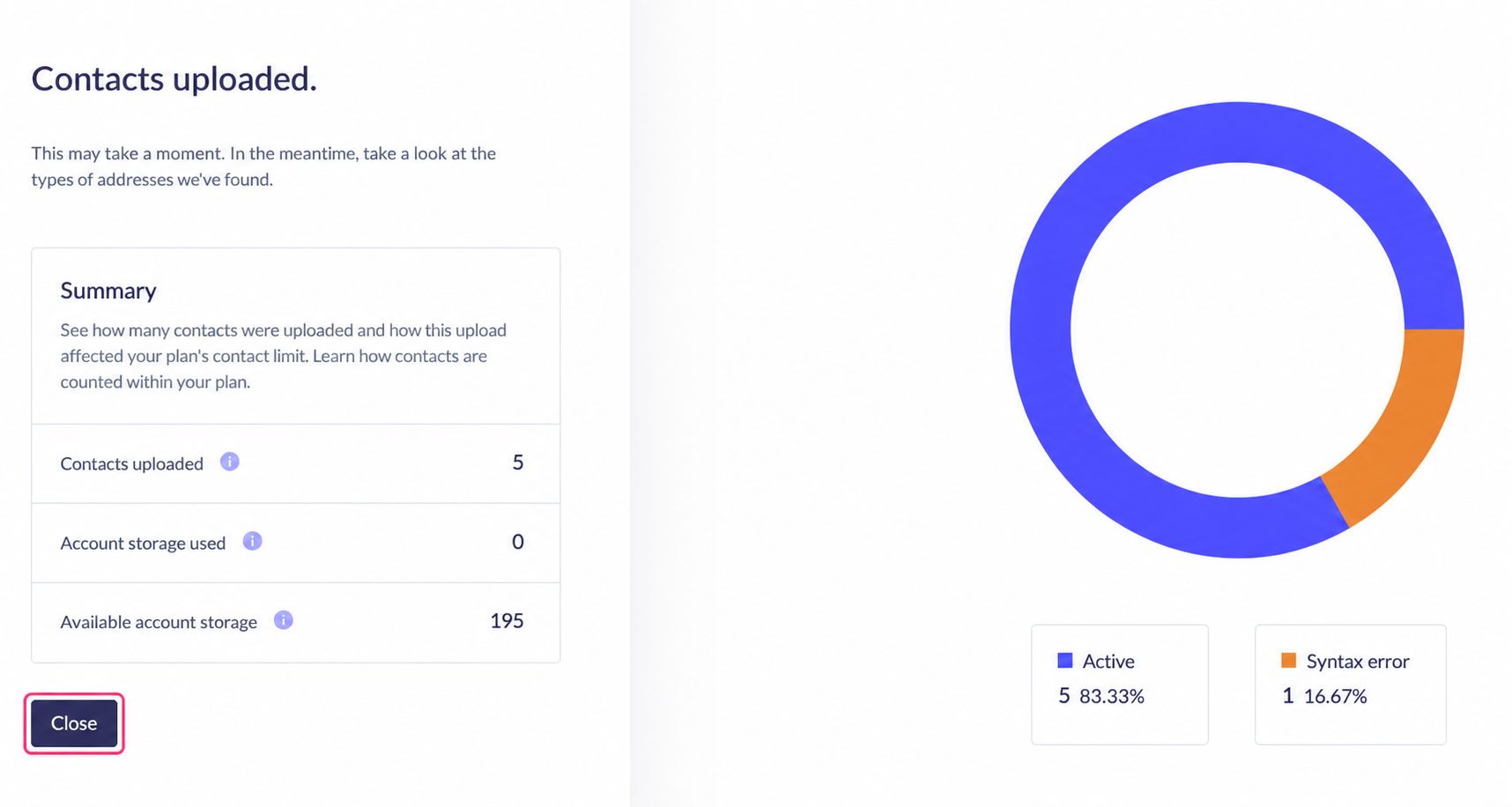

How to add multiple contacts from files or contact databases
To add multiple contacts that you have in a file or contact database you should choose the Upload contacts option.
.png)
Steps you should follow:
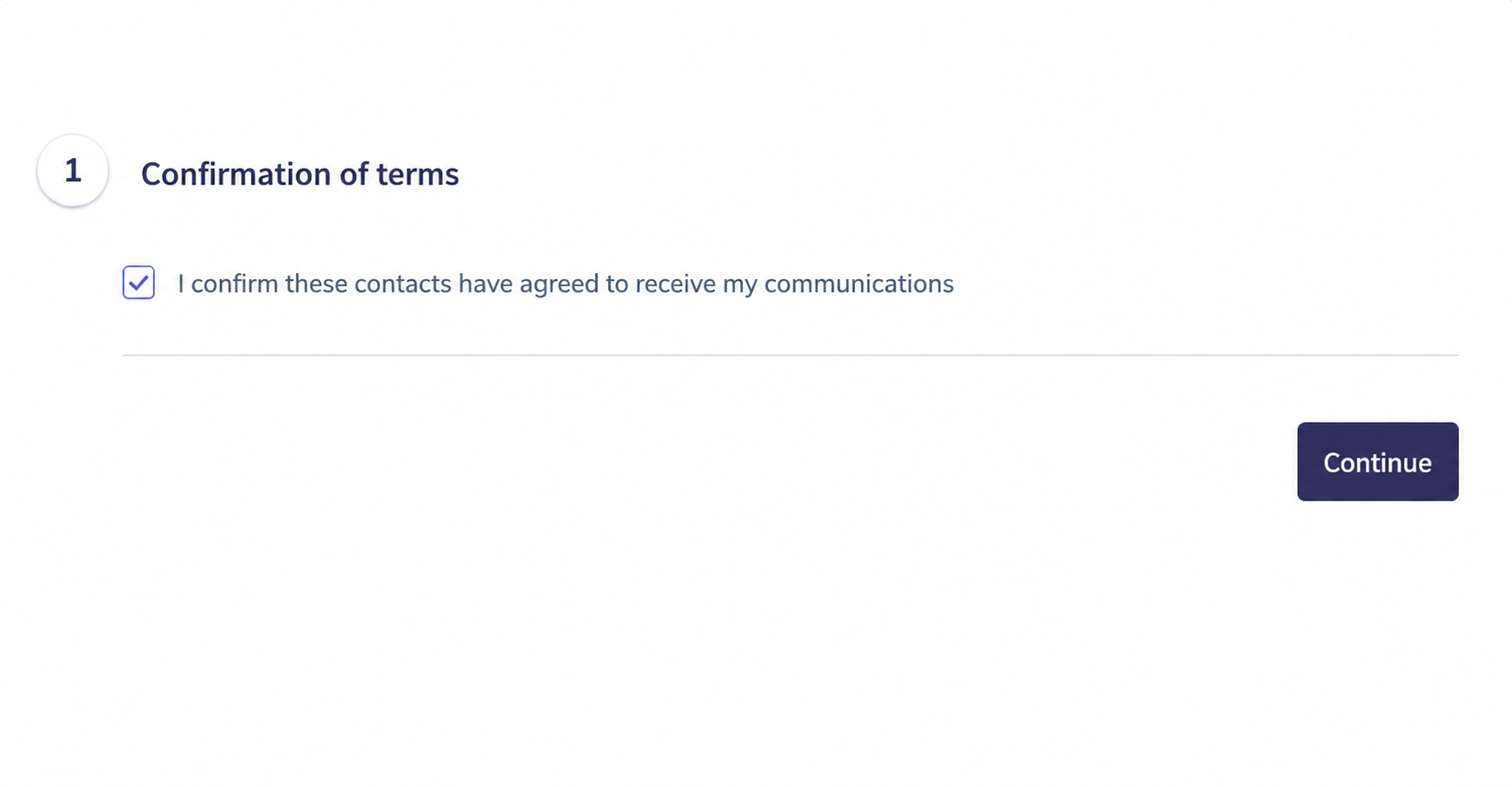
- First, you will see a confirmation request for the anti-spam terms.
It is important that the contacts you add have subscribed and agreed to receive the emails you send.
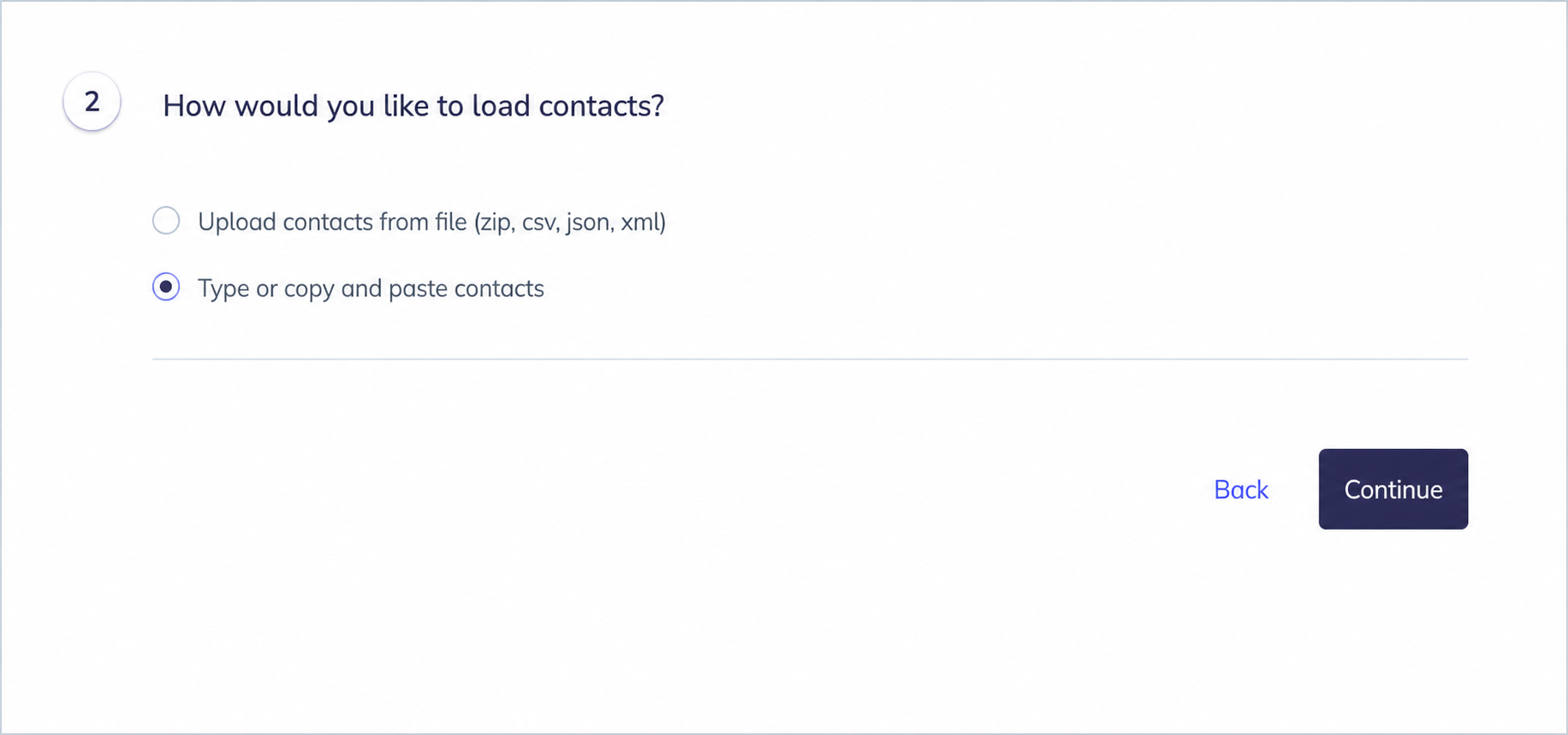
- In the next step you can choose whether you’ll upload the contacts from a file or copy them (copy and paste) into a box in this interface.
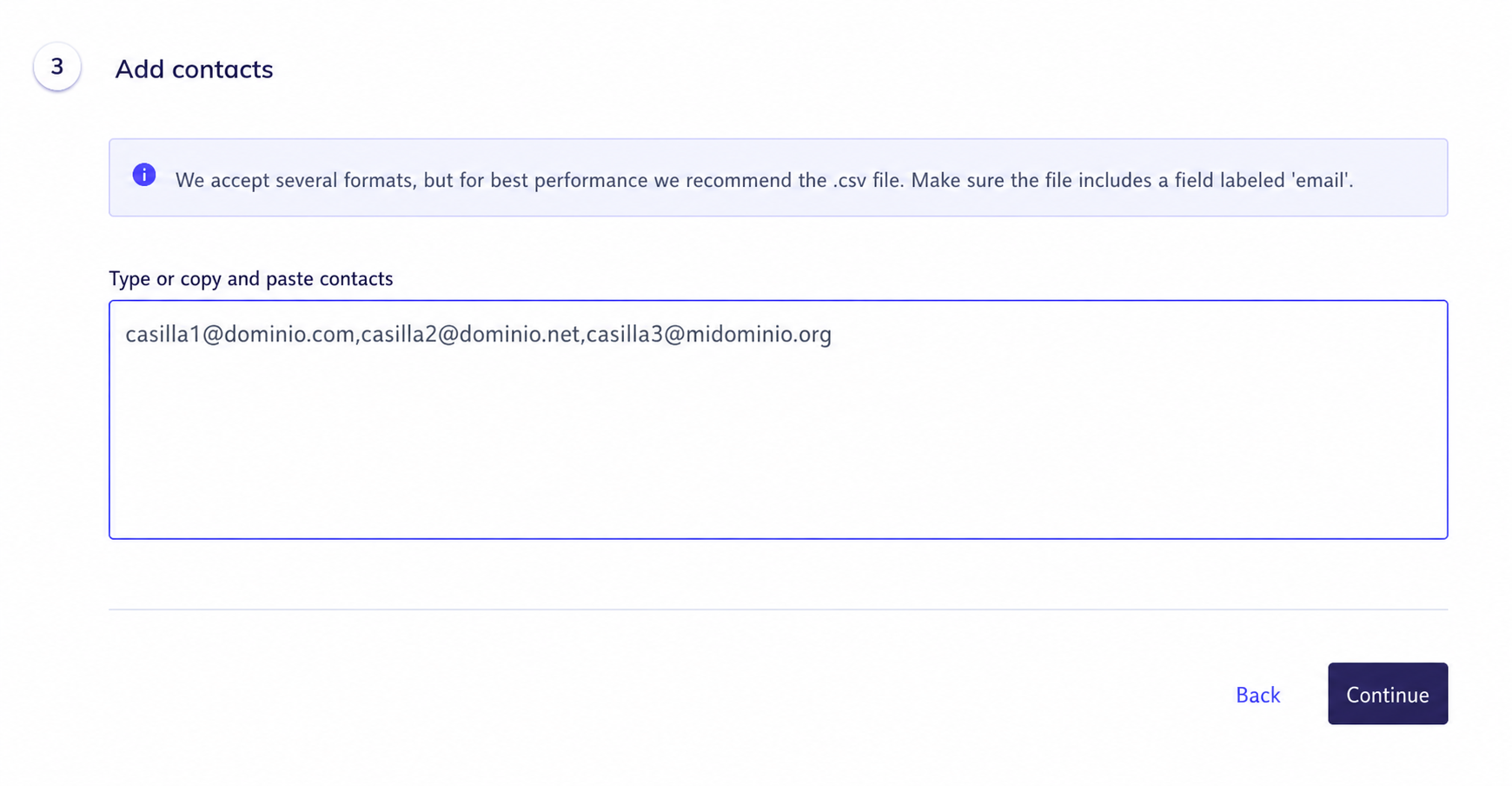
- This step will vary depending on the option you chose in the previous step:
If you chose to upload contacts from a file, you’ll see a button in the center to upload the file.
The contact list can be in csv, json, or xml format and may be compressed in zip format.
.png)
If you chose to upload contacts by copying and pasting them from another file, you’ll see a box where you’ll have to copy each cell, side by side, separated by a comma (,).
- Step 4 will simply inform you, in numbers, how many contacts you added.
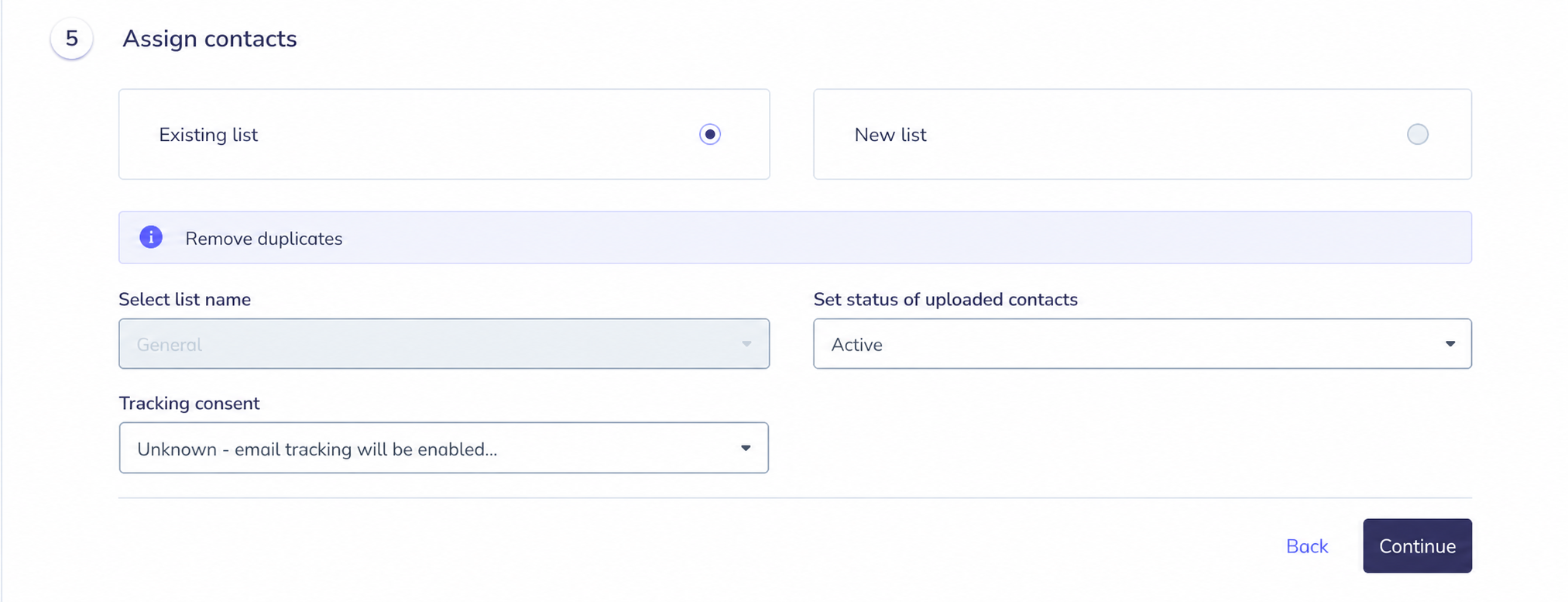
- In this final step you can define some options and conditions for the contacts you are about to add to your list. For example you can:
- Choose which list to add these contacts to (only if you have more than one list created).
- Set their Status: Active, Complaint, Cancelled, Inactive, etc.
- Configure Tracking Consent: whether they accepted tracking of the emails you send them.
At the end, you will see a summary of the contacts added, including whether there were contacts with any typos.